How do I find, join, and leave cirQQles?
Updated
Use Explore to discover cirQQles for businesses, organizations and groups that interest you. Learn how to find a cirQQle, join or request membership, and leave when you no longer want to belong.
Before you start
Sign in to your cirQQles account. The tutorial uses the fictional Maple Community and Maple Book Club, with demonstration responses. No real memberships are changed. The recording shows the actual browser interface at a phone-sized width; native-app and category-specific differences are explained below.
Watch the tutorial
Open or download the tutorial video.
Video transcript
- 00:00 — Find, join and leave cirQQles. Start signed in. This demonstration uses fictional communities and local responses.
- 00:04 — Open Explore. Select Explore in the bottom tabs. On a wide browser screen, use the Explore navigation option.
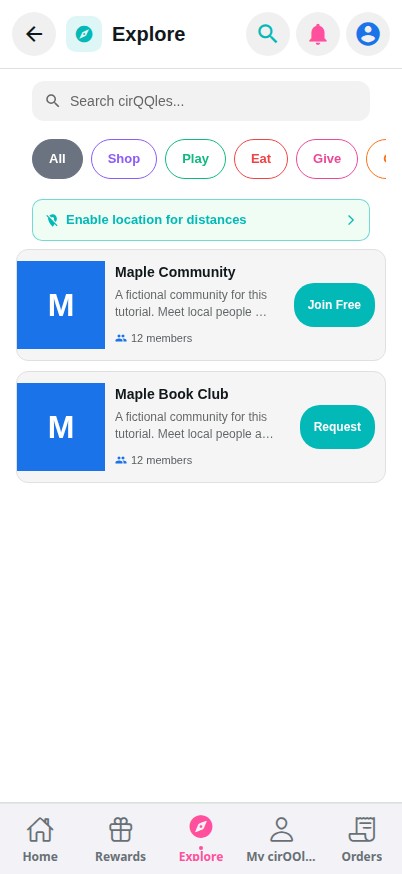
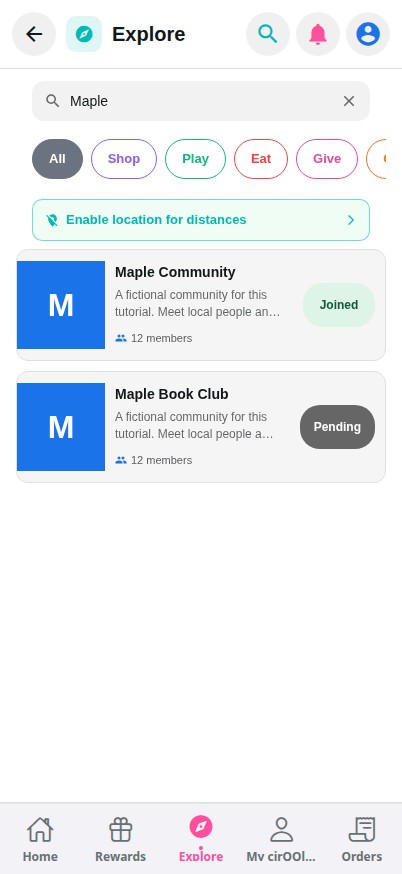
- 00:08 — Browse by interest. Choose a category such as Shop, Play, Eat, Give or Connect. Select All to broaden your results.
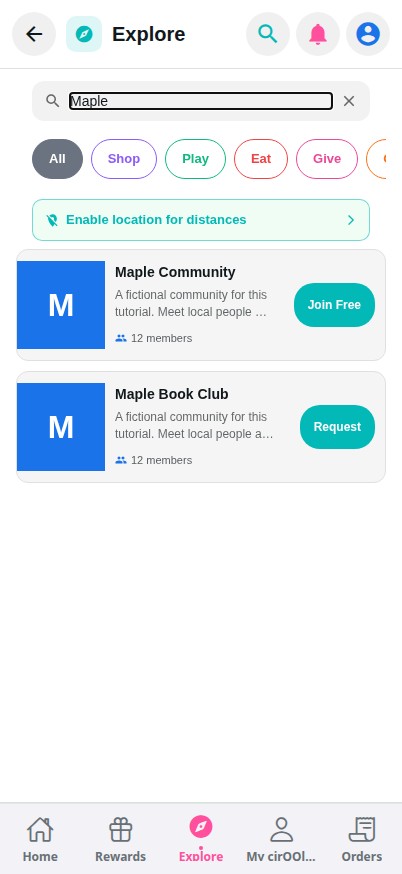
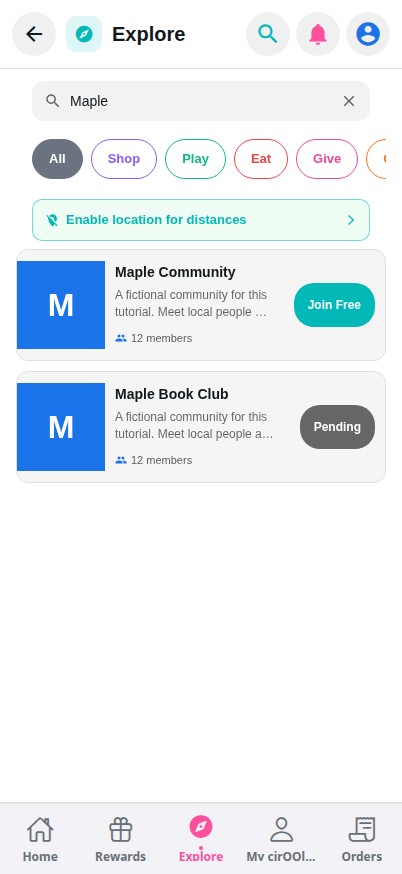
- 00:13 — Search for a cirQQle. Type the cirQQle name into Search cirQQles… Here, Maple is a fictional example.
- 00:19 — Open a result. Select the cirQQle name to open its details and review the membership options.
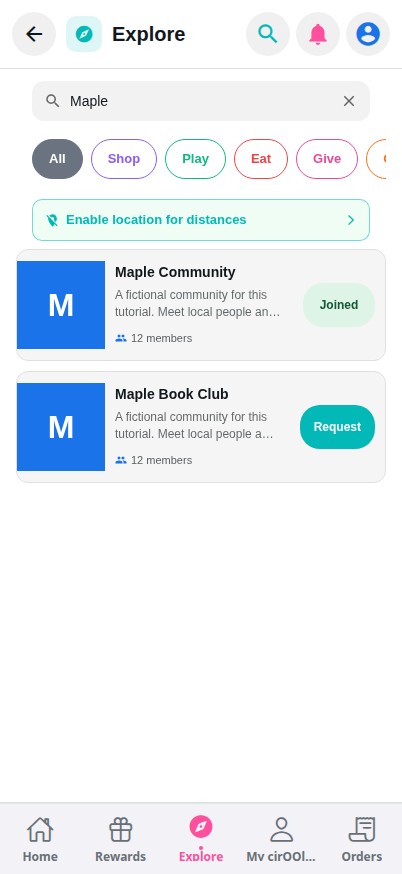
- 00:24 — Join an open cirQQle. Select Join on the details page. The app confirms the membership. Explore then shows Joined.
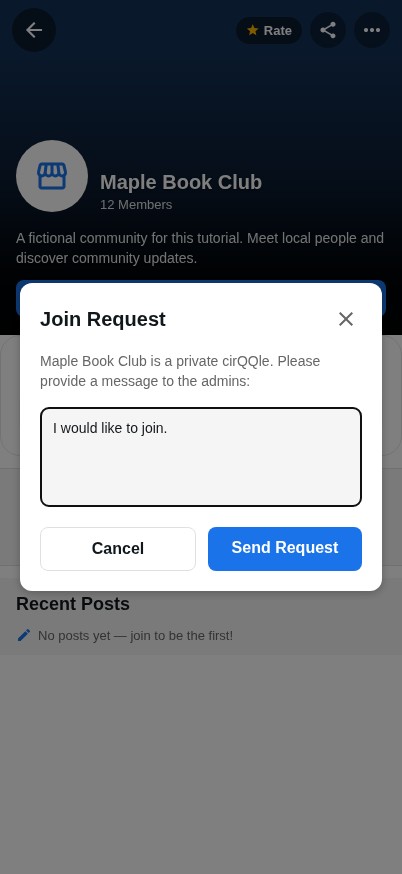
- 00:32 — Some cirQQles require approval. Request is different from Join Free. Open the private cirQQle and send a membership request.
- 00:45 — Some cirQQles require approval. Pending means your request is awaiting approval. It is not the same as Joined.
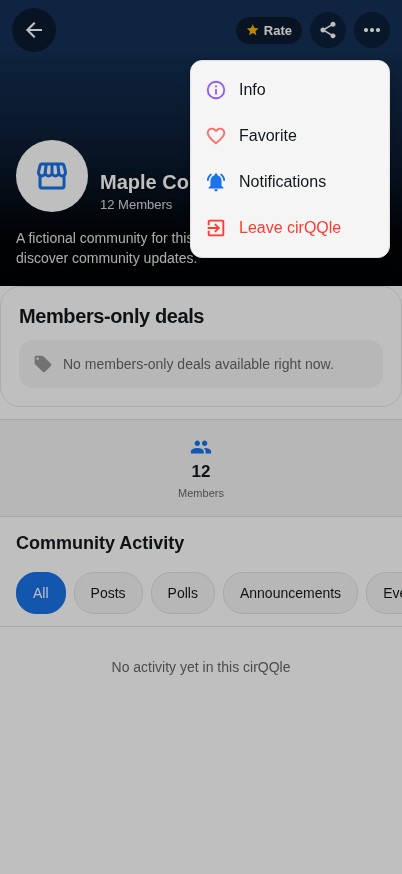
- 00:50 — Open the membership menu. To leave, open a cirQQle you belong to. Select the three-dot menu at the top of its details.
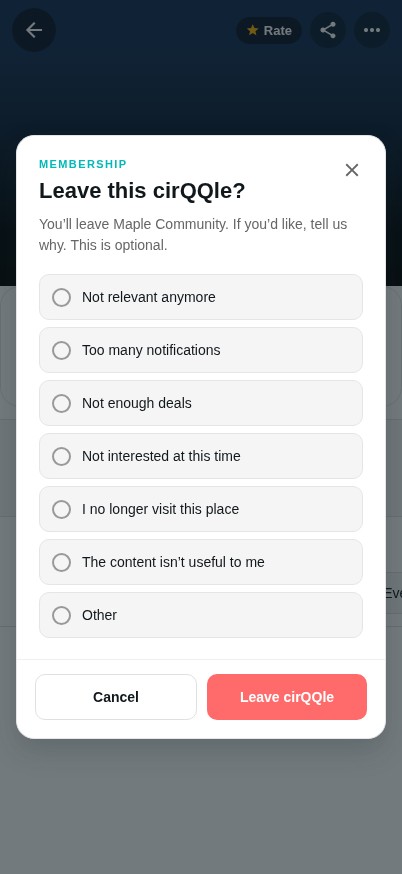
- 00:56 — Choose Leave cirQQle. Select Leave cirQQle. A confirmation dialog explains that the reason is optional.
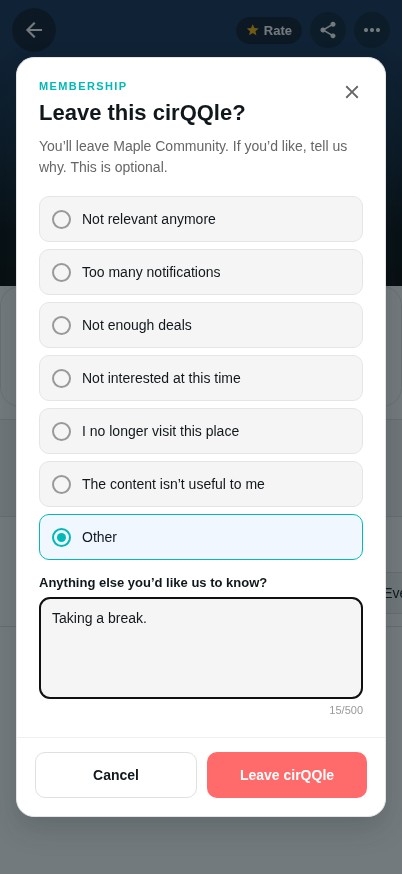
- 01:02 — Cancel or confirm. Cancel keeps your membership. Otherwise, choose an optional reason and select Leave cirQQle to confirm.
- 01:14 — Membership ended. The cirQQle is no longer marked Joined. You can continue exploring. This video demonstrates the UI with fictional data.
The cursor and yellow click indicators show each action. Search and example messages are typed into the real controls. All displayed communities and responses are fictional.
Find a cirQQle in Explore
- Select Explore. In the mobile app or narrow browser layout, use the bottom navigation. In the wide browser layout, use the Explore navigation option.
- Browse All, or choose Shop, Play, Eat, Give or Connect. Scroll the category row sideways if a category is off-screen.
- Enter the cirQQle name in Search cirQQles.... Additional category filters appear when available.
- Select a result's name or main card area to open its details. Selecting its image may open the photo instead.
Join a cirQQle
- A result marked Join Free is available to join; Request indicates an approval-required cirQQle. Selecting these controls opens the invitation page. Follow its instructions and sign in if prompted.
- In the app, select Join our community on the invitation, or use the available Join action on the cirQQle's details page.
- In the browser, some category templates show Get the app to join. Continue in the cirQQles app using the download/open-app instructions; desktop invitations also provide a QR code. Other details pages provide a Join action directly, as shown in this tutorial.
- Return to Explore. Joined means you are already a member; open the cirQQle to view its available content.
If approval is required
- Follow the Request or Join action. If a Join Request dialog appears, enter your message to the admins and select Send Request.
- When the request is submitted, wait for the cirQQle to review it. Pending in Explore means approval is still outstanding. It does not mean you have joined.
Leave a cirQQle
- Open a cirQQle you belong to.
- Select the three-dot menu at the top of its details page.
- Select Leave cirQQle.
- Review the Leave this cirQQle? dialog. A reason is optional. If you choose Other, you can add optional details in Share a little more (optional).
- Select Cancel to keep your membership, or Leave cirQQle to confirm leaving.
- After a successful departure, the dialog closes and the app returns to the previous screen. In Explore, the cirQQle is no longer marked Joined.
Need help?
- No cirQQles found? Check your spelling, shorten the search and broaden the category filters. Clear the search with its close icon when available.
- Location is disabled? Explore can still list cirQQles. The Enable location for distances prompt explains how to enable distance information.
- Your request is Pending? Wait for approval. Repeatedly selecting Pending does not submit another request.
- The browser asks you to get the app? Follow the invitation's app-store, QR-code or open-app instructions and continue there.
- An action fails? Do not assume membership changed. Review the error, check your connection and try again. A failed departure leaves the confirmation dialog open with an error.