How do I configure a Q-Pilot campaign?
Updated
Q-Pilot turns your campaign brief and AI Library information into posts, polls, announcements or promotions. This guide explains what the campaign settings mean, when to choose a one-time or recurring campaign, how content sources change with your cirQQle's category, and how to guide the writing and select media. The silent walkthrough uses a fictional restaurant catalog and stops before creating a campaign.
Before you start
- Open Q-Pilot as an admin in the correct cirQQle, then use The Creator.
- Review your AI Library so the business facts and context available to the writing assistant are accurate.
- For catalog-based content, first add the available menu items, active products or active donation causes appropriate to your cirQQle's category.
- Prepare any images or videos you want to use in your Media Library, and check the images attached to catalog items.
- Choose a realistic content quantity and review the timezone before enabling a recurring schedule.
Watch the tutorial
This silent tutorial uses fictional demonstration data. Use your own details. The demonstrations do not change real accounts or send real messages.
Open or download the tutorial video.
Video transcript
- 00:00 — Start in Q-Pilot. Use The Creator to set up content. This walkthrough uses fictional data and does not create a real campaign. Open Q-Pilot and locate New Campaign under The Creator.
- 00:08 — Set the campaign basics. Name the campaign, choose 1–50 items, and select the content type. Count means items in this batch or recurring round. Click New Campaign. Enter a descriptive Campaign Name, set Content Count, and choose Posts, Announcements, Promotions or Polls.
- 00:21 — Choose recurring rounds. Recurring creates its first round at the next configured schedule, not immediately. Set frequency, local generation time and timezone. Choose Recurring to show Frequency, Generation time, generation day and Timezone. Daily, Weekly, Every two weeks and Monthly are available.
- 00:35 — Compare one-time campaigns. One-time creates a single batch. Its Start Date and End Date describe the publication window, not a repeating schedule. Choose One-time for a single batch. Keep the required dates valid, then click Next to choose the content source.
- 00:45 — Use a category-specific catalog. Restaurants can choose Menu Items. Retail and wholesale cirQQles use Products; non-profits can use Donation Causes. Open Content Source Type and choose the catalog option when available. In this restaurant example, select Menu Items to see its Selection Scope.
- 00:55 — Scope the catalog and its images. Choose the whole catalog, categories, or specific items. Catalog posts use the image attached to each selected item. For this example, choose By Category, select Lunch, then click Next. Campaign Media explains that images come from your menu items.
- 01:08 — Write guidance for other sources. General sources need a brief: give verified facts, key messages and limits. Selecting a source is not enough by itself. Go Previous, change Content Source Type to Educational Tips, and enter your brief in Content Guidance & Notes. Other source choices are explained in the reference below.
- 01:23 — Refine the writing style. Tone and Length shape the writing. Audience, call-to-action, hashtags, emojis, brand voice and format give further direction. Choose the writing Tone and Length that fit your audience. Review the other writing controls and the inherited cirQQle defaults before continuing.
- 01:35 — Use a Media Library folder. For a general content source, choose how to supply media. A library folder lets Q-Pilot choose from your stored images and videos. Click Next. Under Media Source, choose Use images and videos from Media Library Folder, then review Select Folder.
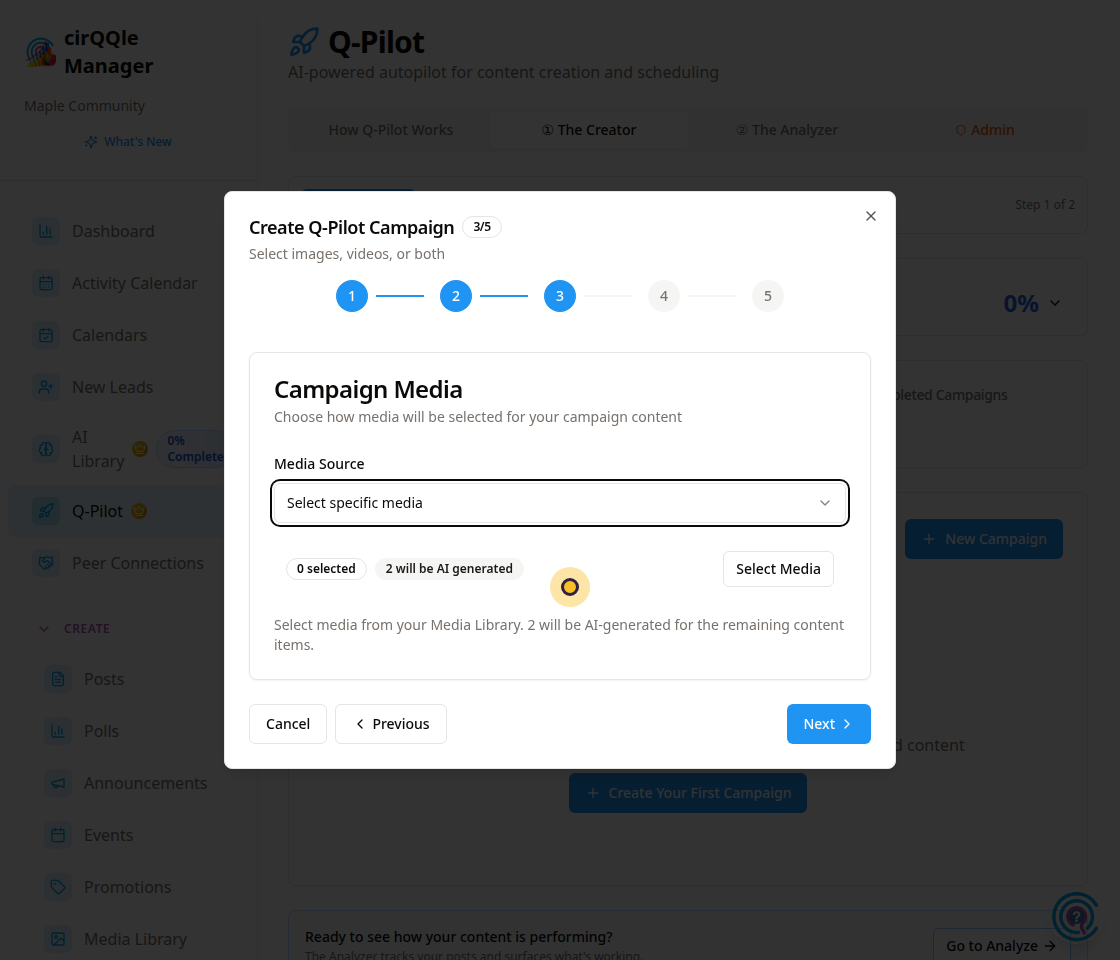
- 01:47 — Select specific media. Choose individual library items for more control. The form shows how many remaining content items will need AI-generated images. Choose Select specific media. Use Select Media to open your library and choose the images or videos you want. This walkthrough does not change your library.
- 01:57 — Generate new images. AI Generated Images creates new images rather than selecting stored media. Review the image style so it matches your brand. Choose AI Generated Images, then review AI Image Generation Style. Generated visuals should be checked before publishing.
- 02:07 — Review before you create. Continue through Social Media and Review & Generate when ready. This demonstration stops before creating content or scheduling real activity. Review the campaign mode, count, source, writing brief and media. Continue to Social Media and Review & Generate only when the choices are ready. Generated content and publishing approval are separate decisions.
Follow these steps
Open Q-Pilot and locate New Campaign under The Creator.
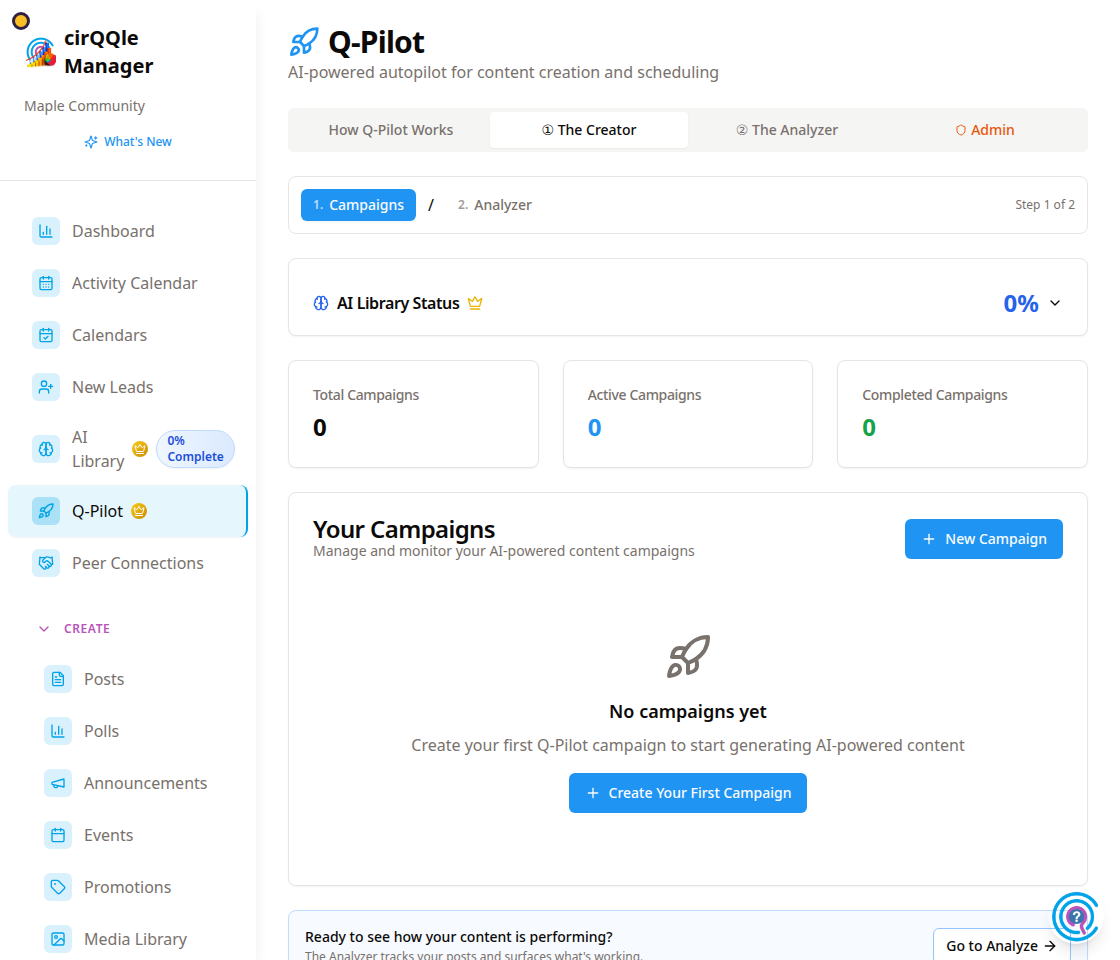
Use The Creator to set up content. This walkthrough uses fictional data and does not create a real campaign. Click New Campaign. Enter a descriptive Campaign Name, set Content Count, and choose Posts, Announcements, Promotions or Polls.
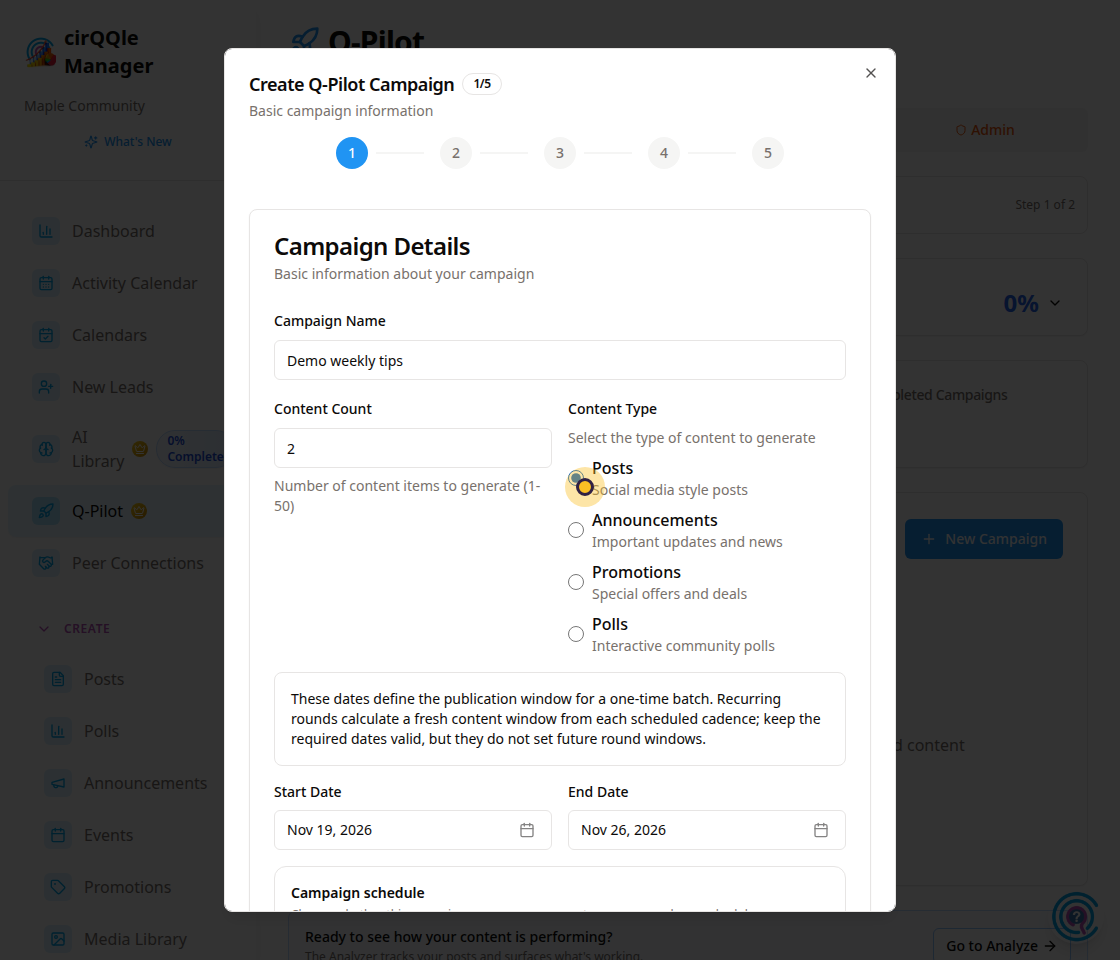
Name the campaign, choose 1–50 items, and select the content type. Count means items in this batch or recurring round. Choose Recurring to show Frequency, Generation time, generation day and Timezone. Daily, Weekly, Every two weeks and Monthly are available.
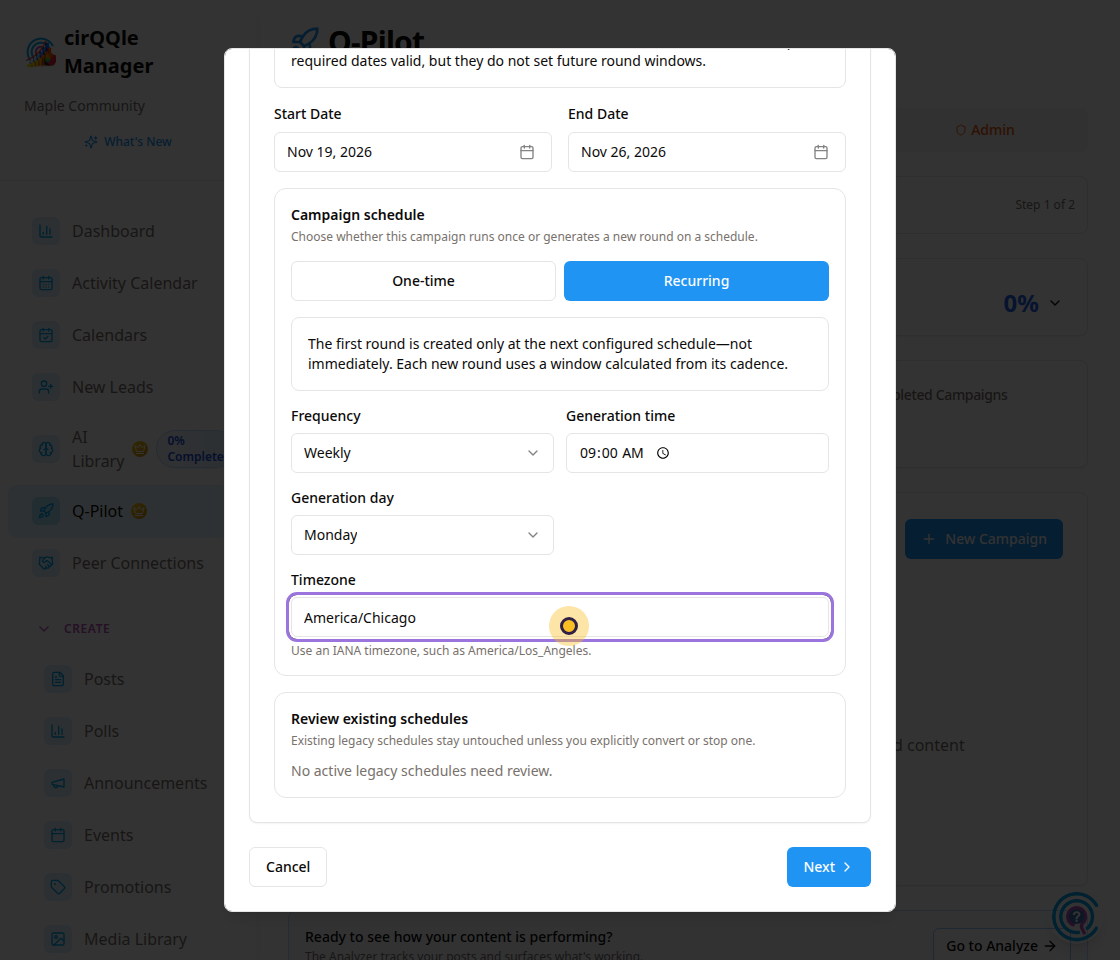
Recurring creates its first round at the next configured schedule, not immediately. Set frequency, local generation time and timezone. Choose One-time for a single batch. Keep the required dates valid, then click Next to choose the content source.
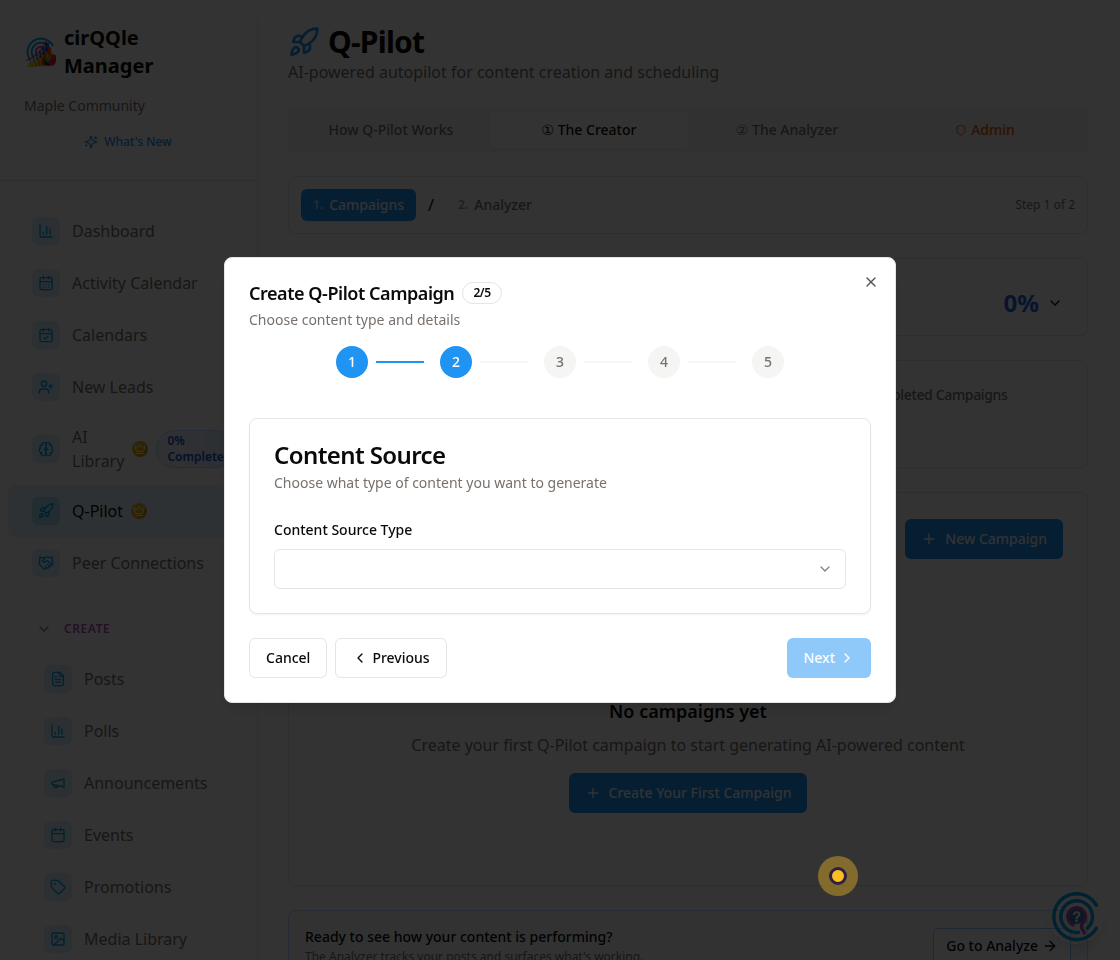
One-time creates a single batch. Its Start Date and End Date describe the publication window, not a repeating schedule. Open Content Source Type and choose the catalog option when available. In this restaurant example, select Menu Items to see its Selection Scope.
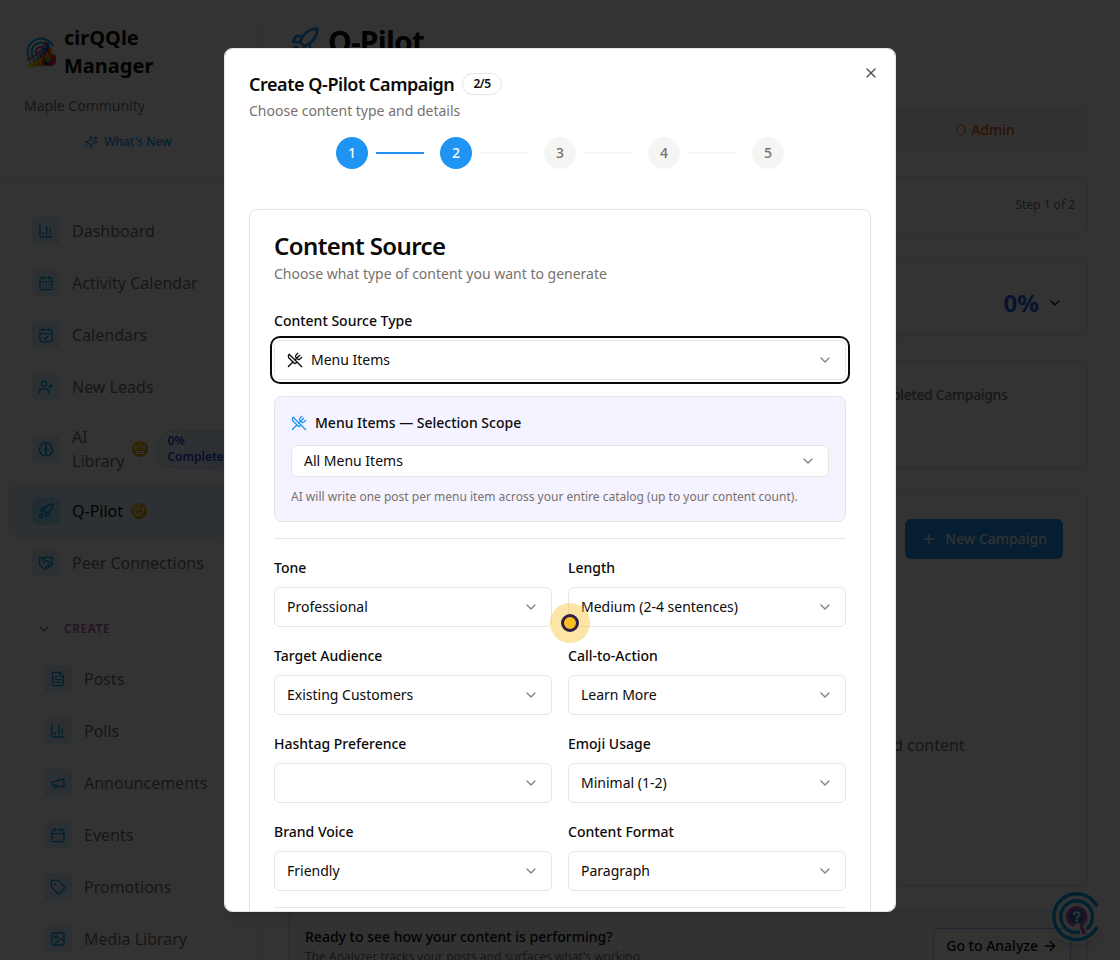
Restaurants can choose Menu Items. Retail and wholesale cirQQles use Products; non-profits can use Donation Causes. For this example, choose By Category, select Lunch, then click Next. Campaign Media explains that images come from your menu items.
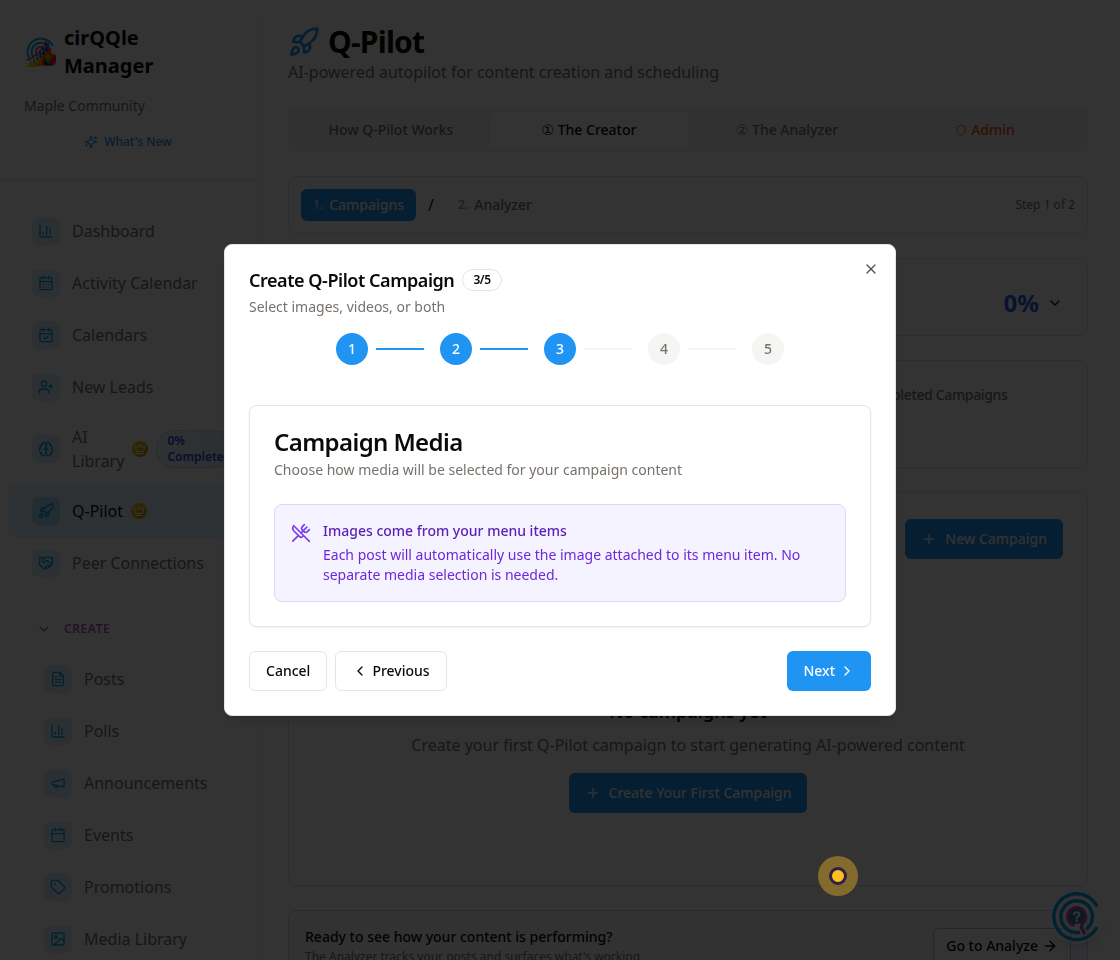
Choose the whole catalog, categories, or specific items. Catalog posts use the image attached to each selected item. Go Previous, change Content Source Type to Educational Tips, and enter your brief in Content Guidance & Notes. Other source choices are explained in the reference below.
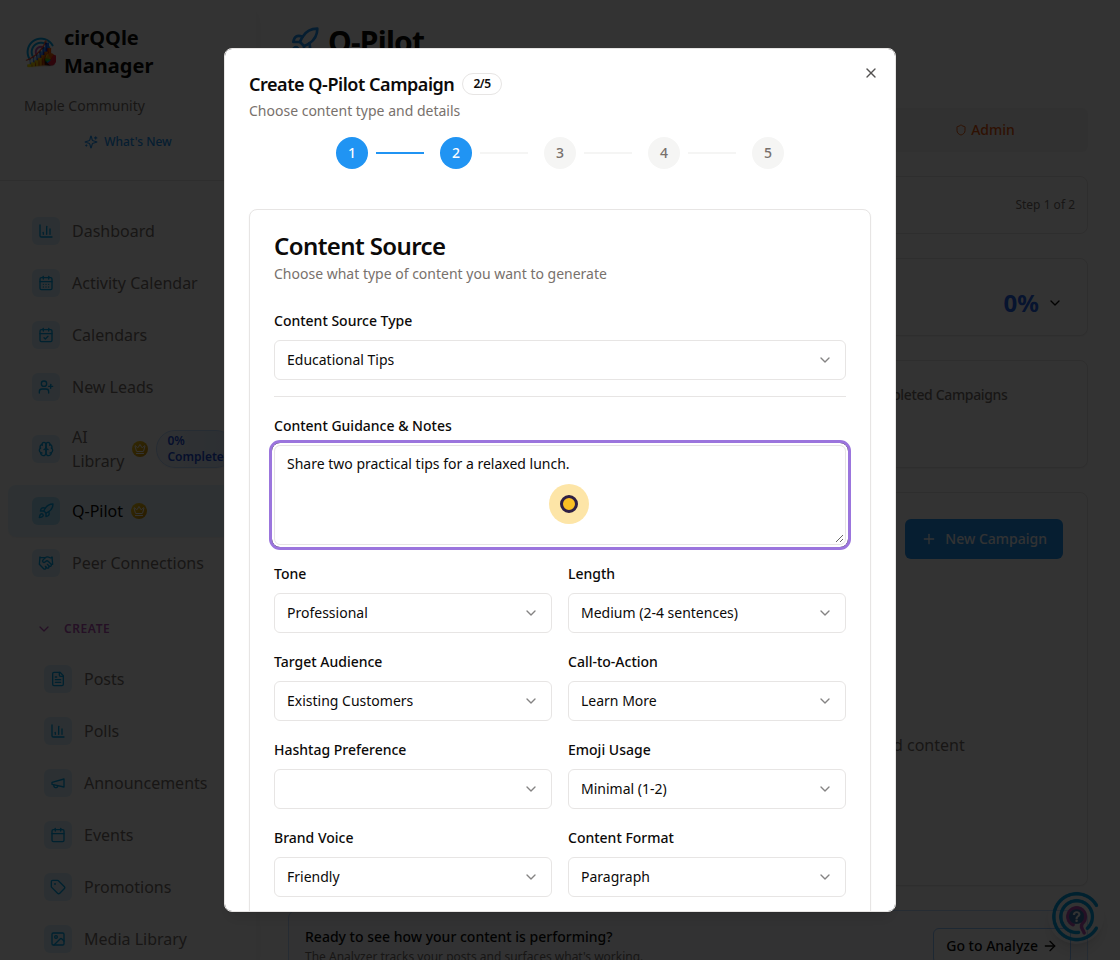
General sources need a brief: give verified facts, key messages and limits. Selecting a source is not enough by itself. Choose the writing Tone and Length that fit your audience. Review the other writing controls and the inherited cirQQle defaults before continuing.
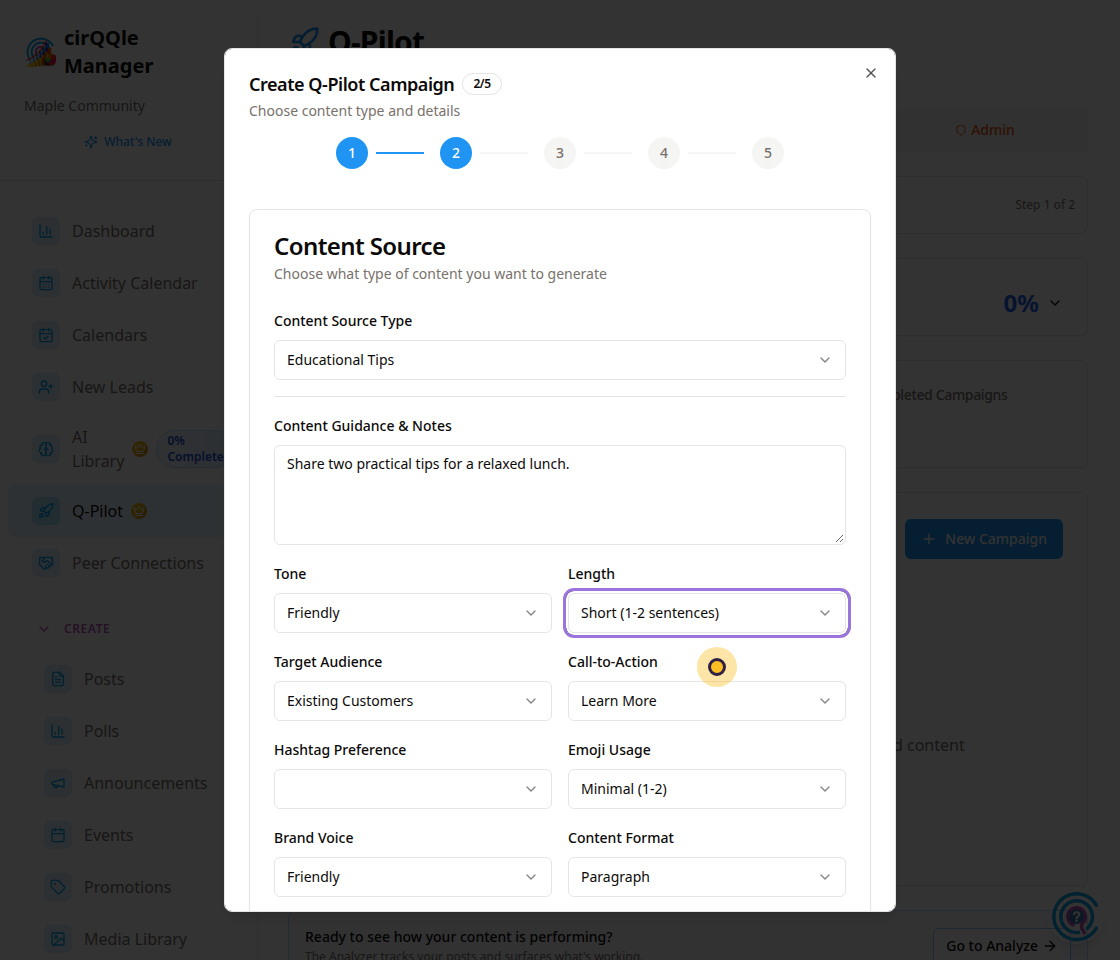
Tone and Length shape the writing. Audience, call-to-action, hashtags, emojis, brand voice and format give further direction. Click Next. Under Media Source, choose Use images and videos from Media Library Folder, then review Select Folder.
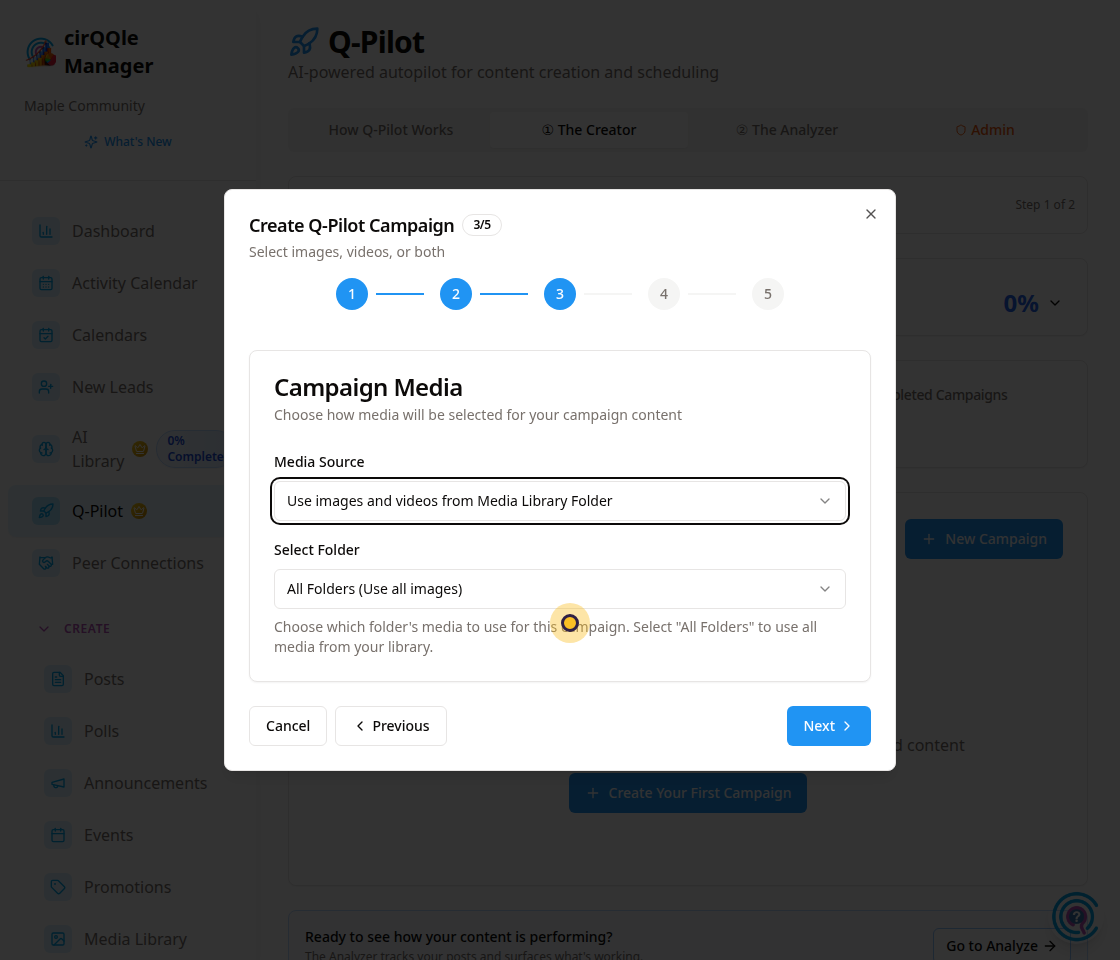
For a general content source, choose how to supply media. A library folder lets Q-Pilot choose from your stored images and videos. Choose Select specific media. Use Select Media to open your library and choose the images or videos you want. This walkthrough does not change your library.
Choose individual library items for more control. The form shows how many remaining content items will need AI-generated images. Choose AI Generated Images, then review AI Image Generation Style. Generated visuals should be checked before publishing.
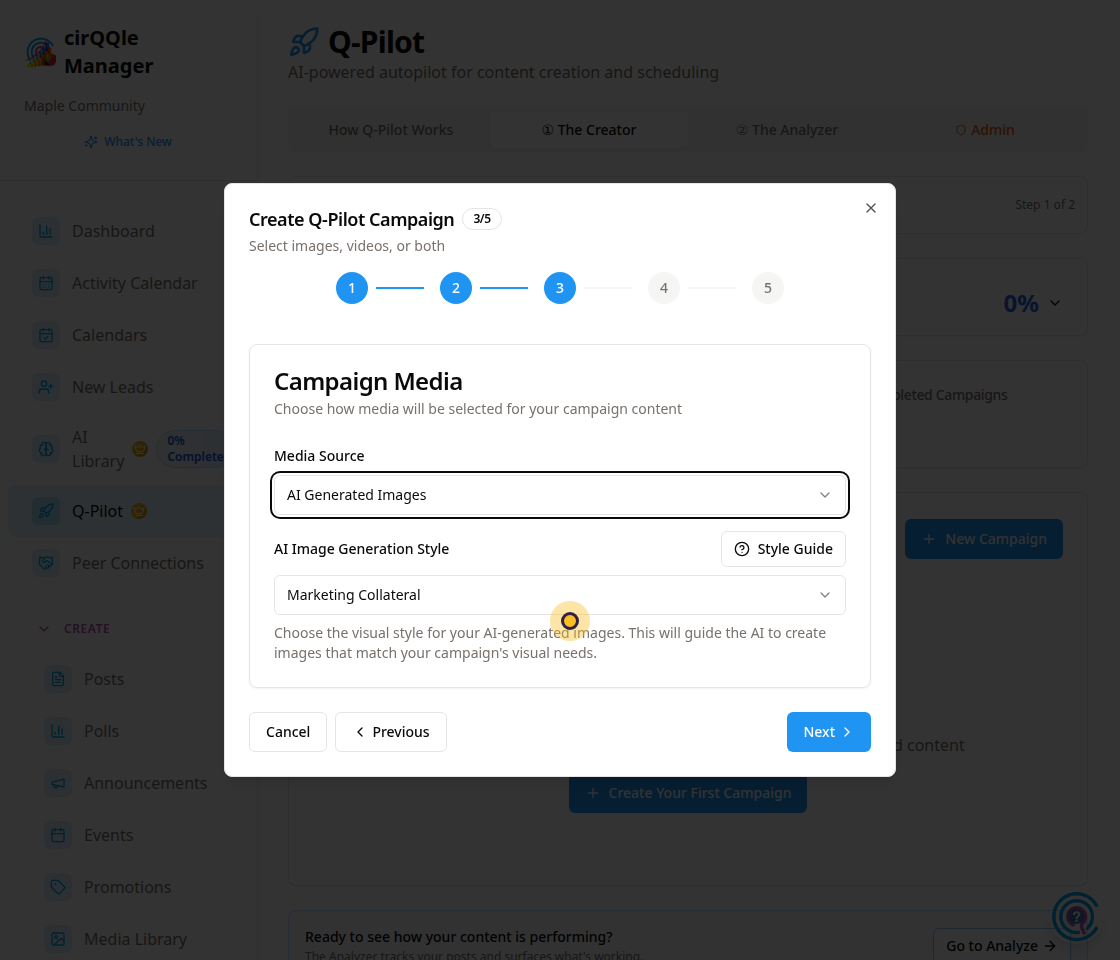
AI Generated Images creates new images rather than selecting stored media. Review the image style so it matches your brand. Review the campaign mode, count, source, writing brief and media. Continue to Social Media and Review & Generate only when the choices are ready. Generated content and publishing approval are separate decisions.
Continue through Social Media and Review & Generate when ready. This demonstration stops before creating content or scheduling real activity.
Q-Pilot campaign settings explained
A campaign is your brief for a batch of content. Use a clear name, choose how much content to create, decide what the content should be about, and select its media. Creating content is not the same as publishing it: review your publishing and approval settings separately.
- Campaign Name: an internal name that helps you recognize the purpose of the campaign, such as “Weekly lunch tips” or “Holiday member offers.”
- Content Count: how many items to generate, from 1 to 50. For a recurring campaign, this is the quantity for each round, not a monthly total or a number to add to another generator.
- Content Type: Posts for social-style updates; Announcements for important news; Promotions for offers; or Polls for questions members can answer. This choice changes the content-source choices that follow.
- Start Date and End Date: the publication window for a one-time batch. Keep both valid even when setting up recurrence; future recurring rounds calculate their own windows from the selected cadence.
- Campaign schedule: choose One-time or Recurring. Generation timing is when a round is prepared, not a promise that every item will be published at that exact time.
One-time or recurring?
One-time
Use One-time for a single batch, such as an event announcement, a short promotion, or content for a specific date range. It does not automatically create another batch next week. The later Review & Generate step lets you choose the available generation workflow, including starting generation now or receiving an email when background generation is complete.
Recurring
Use Recurring when the same campaign should prepare new rounds over time. Choose Daily, Weekly, Every two weeks, or Monthly; set Generation time and Timezone; then choose the generation day for a weekly or two-week cadence, or the day of month for a monthly cadence. Use an IANA timezone such as America/Chicago so the schedule is interpreted for the intended location.
The first recurring round is generated at the next configured schedule, not immediately when the campaign is created. Each later round uses a fresh content window based on that cadence. For example, Content Count 2 with Weekly means two content items per weekly round, not two immediately plus two at the first scheduled run.
The Analyzer supplies findings that help refine future rounds, while the campaign remains in control of its brief and quantity. It is not a separate instruction to double the requested number of posts. Check any older schedules shown under Review existing schedules before adding overlapping recurring activity.
Content Source: choose what the content is about
Content Type determines the list of source choices. A content source is the purpose or topic of the writing; it is not the same as its image or video source. Q-Pilot also uses your AI Library context, so keep your business information accurate and current.
Category-specific catalog sources
- Menu Items: for restaurant-category cirQQles. Uses available menu items in active menu categories to write item-focused content. Choose All Menu Items, By Category, or Specific Menu Items.
- Products: for retail and wholesale/distributor-category cirQQles. Uses active products, grouped by their product categories. Choose the full catalog, By Category where categories are available, or specific products.
- Donation Causes: for non-profit-category cirQQles. Uses active donation causes for awareness content. Choose all causes or specific causes; the donation catalog does not offer the same category selection as menu/product catalogs.
- Other category types: the catalog shortcut is not offered for every category. Use one of the general source choices that matches the selected Content Type.
These catalog shortcuts appear only when the cirQQle has eligible entries. A supported category with an empty or inactive catalog may not show the option. The campaign count still limits how much is generated; selecting the entire catalog does not mean every entry will be covered in a single round.
For catalog sources, the item details provide the core context, so the separate Content Guidance & Notes text box is hidden. The media step uses the image attached to the item instead of offering an independent media-source selector. Keep item descriptions and images up to date. If an item has no usable image, do not assume the campaign will invent an accurate product photo; review the generated result.
Sources for Posts
- Educational Tips: practical advice, how-to guidance, and useful explanations relevant to your industry.
- Behind-the-Scenes: your team, preparation, working process, or the story behind your organization.
- Trending Topics: timely industry or local subjects. Supply the current facts and relevance; do not treat a topic choice as a guarantee of live news verification.
- User-Generated Content: content built around customer stories, reviews, testimonials, or shared photos. Supply accurate source material and make sure you have permission; do not ask AI to invent a real customer quote.
- Quick Wins: short, easy-to-share tips, useful facts, or small actions your audience can apply immediately.
Sources for Polls
- Preference Polls: find out which option people prefer.
- Feedback Polls: ask for input that can help improve a product, service, or experience.
- Fun & Personality Polls: light-hearted questions designed to encourage participation.
- Event-Driven Polls: questions tied to an upcoming launch, event, or campaign, such as preferred timing.
Sources for Announcements
- New Feature or Product Launches: introduce a product, feature, or service.
- Events and Meetups: share details about an upcoming gathering, workshop, or community event.
- Updates and Improvements: explain changes to your service, policies, or customer experience.
- Milestones and Achievements: celebrate a verified organizational or community achievement.
Sources for Promotions
- Exclusive Member Offers: special offers for your cirQQle's members.
- Flash Sales & Limited-Time Deals: time-sensitive offers with clear dates and conditions.
- Loyalty & Reward Reminders: explain available rewards and encourage eligible participation. Do not imply a specific member balance unless you have verified it.
- Event Tie-ins: offers related to a holiday, local event, or special occasion.
Content Guidance & Notes
For general sources, tell Q-Pilot what to say rather than entering only “write a good post.” This field is required for those sources. Add the objective, verified facts, important dates, approved offer terms, key messages, and anything the writing must avoid. A source-specific field, where shown, does not replace the main brief.
Example: “Write two friendly lunch-planning tips for existing customers. Explain that reservations are available through our booking link. Keep each post short. Do not invent prices, discounts, customer quotes, or opening hours.”
- Tone: Professional, Casual, Friendly, Formal, Enthusiastic, or Informative.
- Length: Short (1–2 sentences), Medium (2–4 sentences), or Long (4+ sentences).
- Target Audience: who the writing should address. This guides wording; it does not by itself select who receives a notification.
- Call-to-Action: what you want readers to do, such as learn more, visit your website, shop, sign up, comment, or share. Supply an accurate destination or supporting details where needed.
- Hashtag Preference and Emoji Usage: control the style and amount of those elements.
- Brand Voice: the personality of the writing, such as friendly, playful, inspirational, or authoritative.
- Content Format: the structure, such as Paragraph, Bullet Points, Numbered List, Question Format, Story Format, or Tips & Tricks.
Your cirQQle's saved AI content preferences can prefill these choices. Review them for the particular campaign. These are generation instructions, not a substitute for reviewing facts, claims and offer conditions before publication.
Media Sources
For non-catalog sources, Campaign Media offers three choices:
- Use images and videos from Media Library Folder: let Q-Pilot select from stored media. Choose All Folders, Root Folder, or a named folder. Use a dedicated campaign folder when you want to keep the available media focused and relevant.
- Select specific media: use Select Media to choose individual images or videos from your library. Review the selected count and previews. The form shows how many remaining content items will need AI-generated images when you choose fewer media items than the content count.
- AI Generated Images: request new images and choose AI Image Generation Style. Review the generated visual for accuracy, branding and suitability before publishing. This option generates images, not new video footage.
Catalog exception: Menu Items, Products and Donation Causes use the media associated with the selected entries rather than this general selector. Update the catalog entry if its picture is missing or unsuitable.
Before you finish
- Check Campaign Name, Content Type and Content Count.
- Confirm One-time versus Recurring, the required dates, and any recurrence timezone and day settings.
- Review the source, catalog selection or writing brief, and your style preferences.
- Check the media source or the images attached to your catalog items.
- Continue through Social Media and Review & Generate. Parent cirQQles can also see a child-selection step for post campaigns. Only create the campaign when you are ready for the selected generation workflow.
After generation, review the resulting items and the campaign's approval and publishing settings. A configured campaign does not mean that every item has already been approved, published, or delivered to a member.
Need help?
- Next stays disabled on Campaign Details until Campaign Name, Content Count and Content Type are filled in. The count must be between 1 and 50.
- Menu Items, Products or Donation Causes appears only for a supported cirQQle category with eligible catalog entries. Check your category and catalog availability if the option is missing.
- For By Category or Specific Items, select at least one category or item before continuing. General content sources require Content Guidance & Notes.
- Recurring campaigns do not create an immediate first batch. Check Frequency, Generation time, generation day and Timezone, and allow for the next configured slot.
- Catalog-based posts use their item images. If an item is missing a suitable image, update the item before generation; the workflow can fall back to its normal media-generation behavior.
- For Select specific media, check the selected count. If fewer media items than content items are selected, the form indicates how many remaining items will need AI-generated images.
- If you see an older schedule that needs review, do not create a second recurring campaign for the same purpose without checking for overlapping future runs.