How do I manage Peer Connections and Peer Promotions?
Updated
Build partnerships with other cirQQles, create Peer Promotions, review offers, and see aggregate results. A connection does not automatically share your members, content, or administrator access.
Before you start
You must be an administrator of the selected cirQQle. Open Peer Connections from the menu. Parent and child relationships remain in Manage cirQQle → Connections. A direct parent or child cannot also be your peer. Examples in this article use fictional businesses and simulated outcomes; no invitations or real promotions were sent to make the tutorial.
Watch the tutorial
This silent, annotated video is about 2½ minutes long. Follow the highlighted cursor, visible typing, and instructions. Use your own business details.
Open or download the tutorial video.
Video transcript
- 00:00 — Start with a peer connection. Open Peer Connections for the cirQQle you administer. This demonstration uses fictional businesses and simulated results.
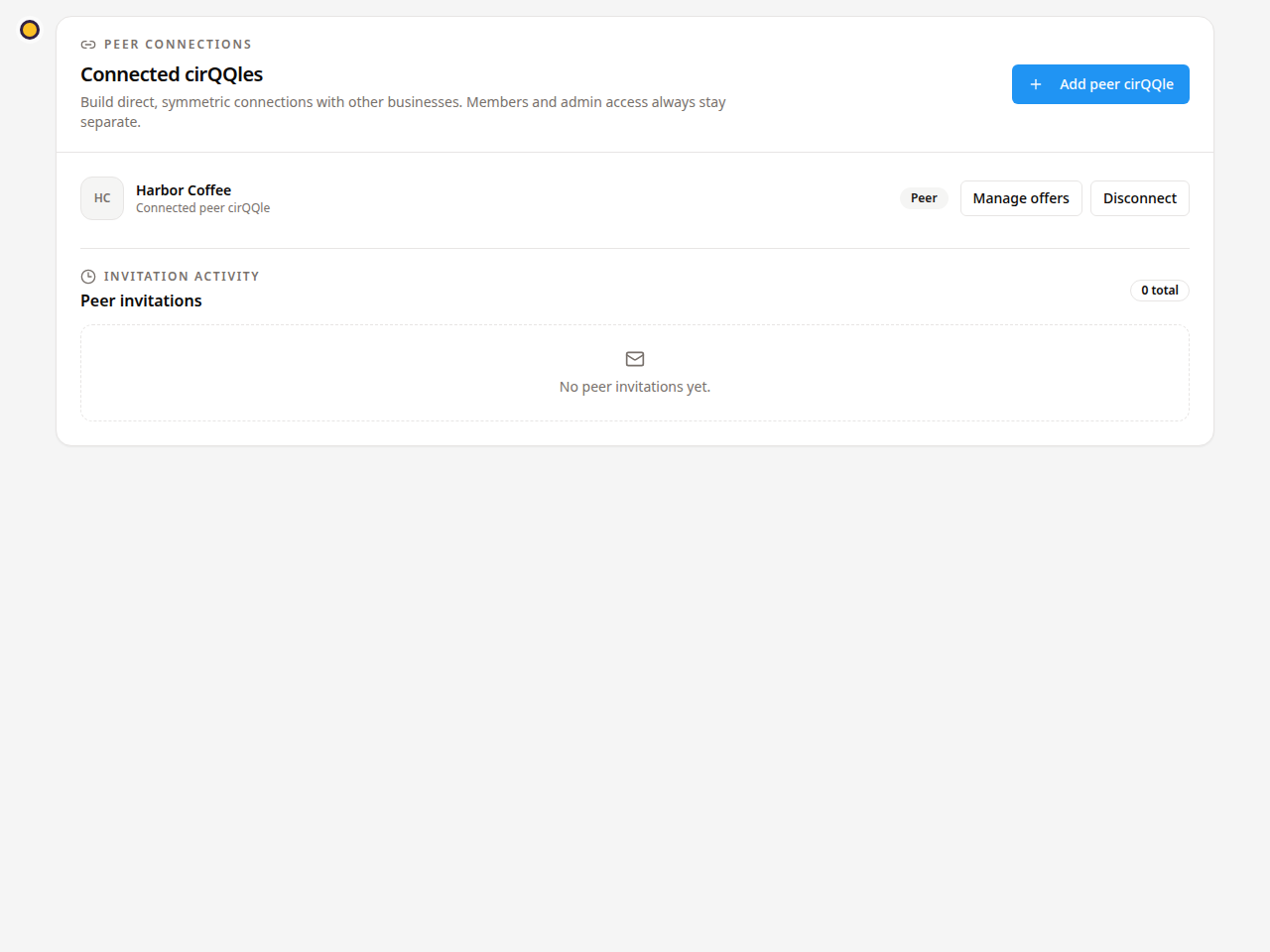
- 00:07 — Find another cirQQle. Select Add peer cirQQle and enter at least two letters. A direct parent or child cannot also be a peer.
- 00:16 — Connect or invite. If you administer both cirQQles, connect immediately. Otherwise send an invitation for the other cirQQle's admins to accept.
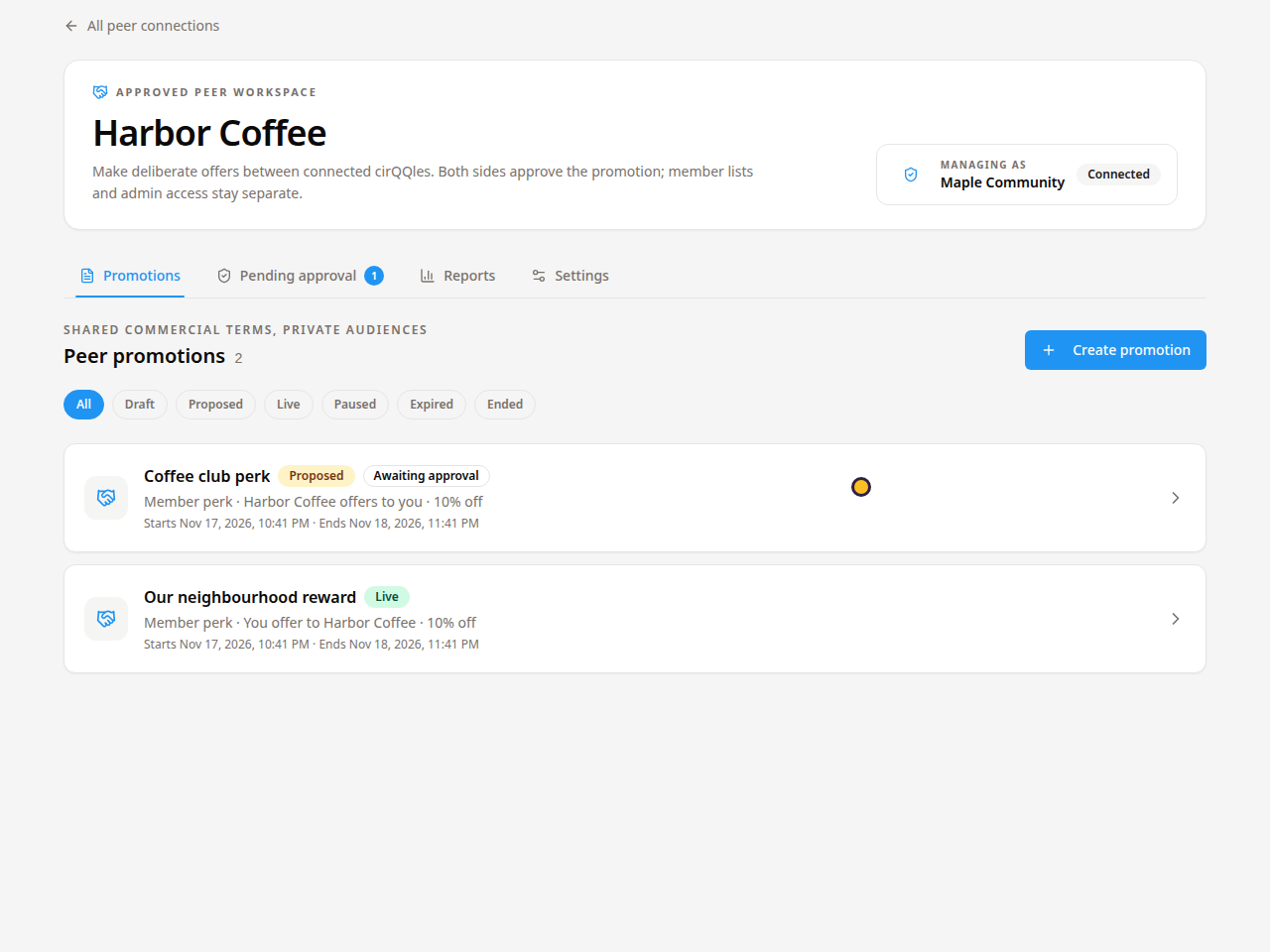
- 00:29 — Manage the partnership. Choose Manage offers to open this peer's dedicated page. Connecting does not share members, content, or admin access.
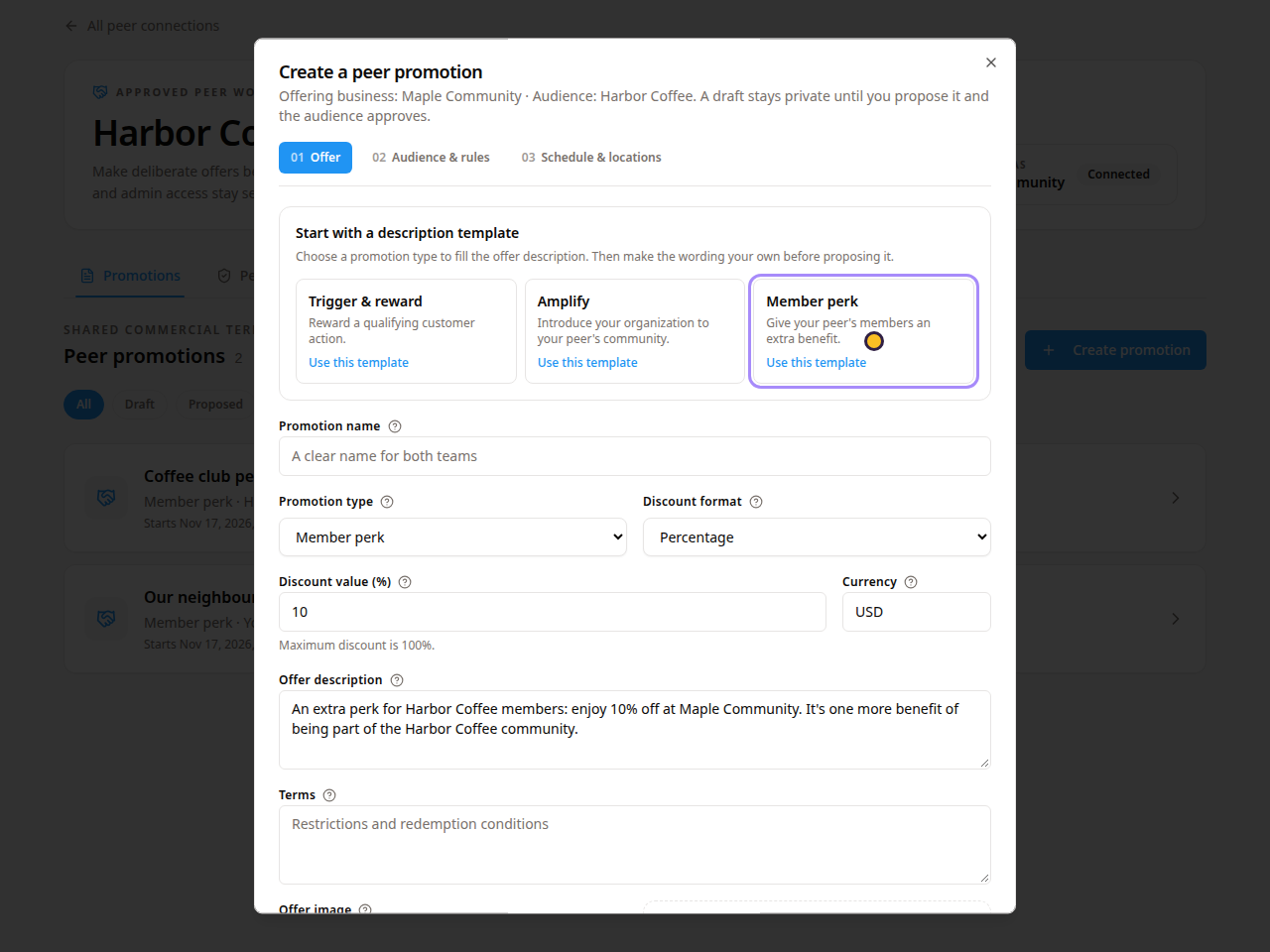
- 00:36 — Start a Peer Promotion. Choose Create promotion. Start with Trigger & reward, Amplify, or Member perk; the starter description remains editable.
- 00:44 — Understand the three models. Trigger & reward requires a qualifying purchase. Amplify raises awareness of another organization. Member perk adds a benefit for your members.
- 00:51 — Make the offer your own. Select a starter, enter a promotion name, and edit the description and terms. Existing descriptions are replaced only after confirmation.
- 01:11 — Choose an offer image. Use Choose from Media Library to select an existing image. Change image or Remove image lets you revise the selection.
- 01:23 — Set eligibility and limits. Continue to Audience & rules. Set the eligible audience and limits; Trigger & reward also needs a qualifying action.
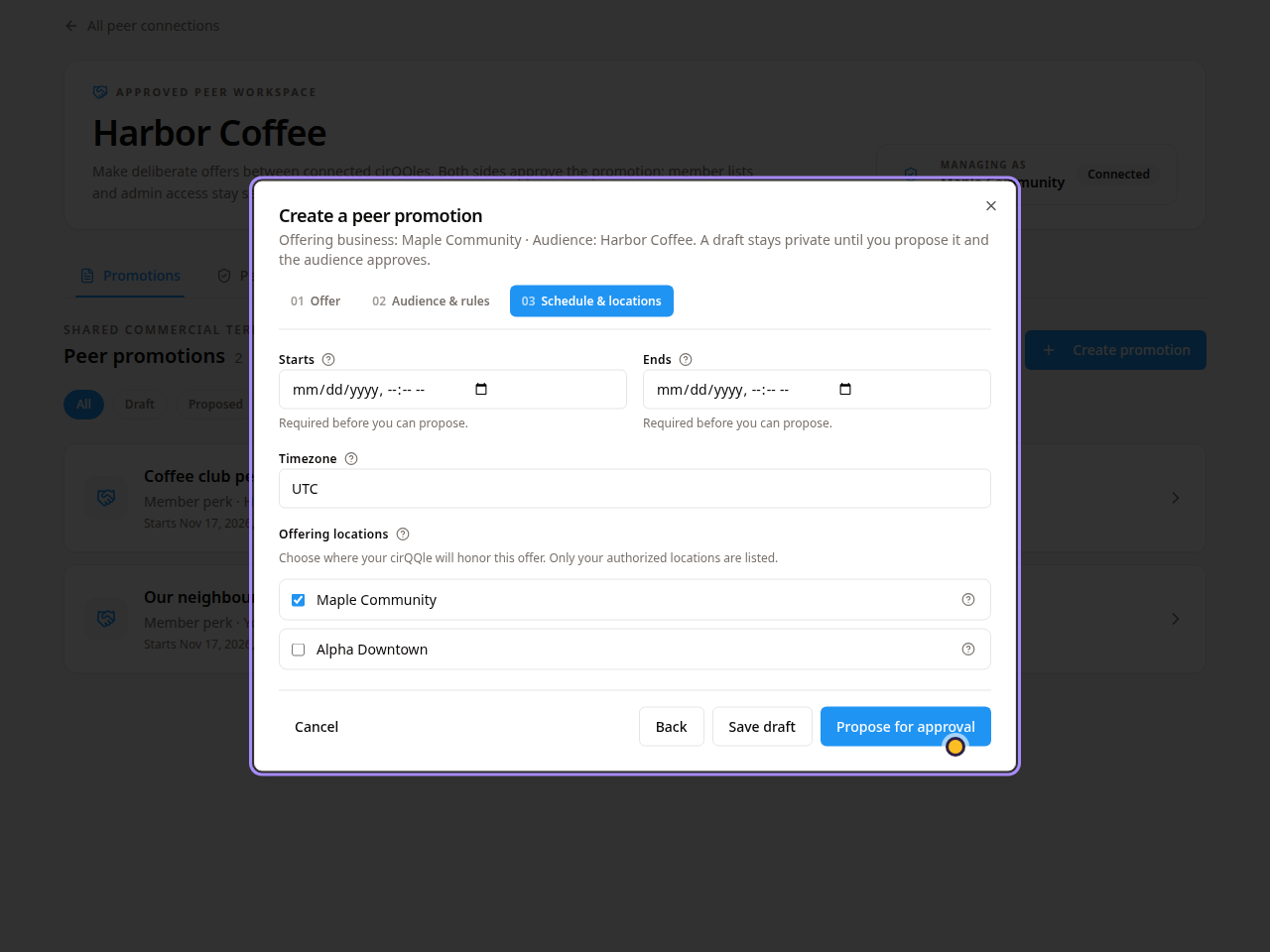
- 01:31 — Schedule and save. Continue to Schedule & locations. Set start and end times, check the timezone and locations, then Save draft.
- 01:41 — Propose, then review. Open a draft to Propose it. The partner reviews the submitted version in Pending approval. Draft changes do not replace the approved version.
- 01:50 — Review incoming promotions. Open an incoming promotion. Check its offer, terms, audience, dates, and locations before approving, declining, or requesting changes.
- 02:01 — Control the lifecycle. Approved promotions become live in their valid date window. Either side can pause or end a promotion. Paused differs from ended.
- 02:08 — Understand auto-approval. Settings apply to your side of this partnership. Auto-approval is off by default and requires a previous live promotion. Check the weekly Amplify cap.
- 02:16 — Read results, not personal data. Reports show aggregate pass activity and recorded revenue. Filter by issue dates, promotion, location, or pass status. Unavailable is not zero.
- 02:22 — What happens next. The mobile app handles eligibility, passes, redemption, expiration, and checkout. This app manages the partnership, promotions, approvals, and reports.
1. Connect with another cirQQle
- Select Add peer cirQQle.
- Type at least two characters in Search cirQQles, find the business, and choose Select.
- If you administer both cirQQles, review and choose Connect peers. Otherwise choose Send invitation. An admin of the other cirQQle must accept before the connection starts.
- Review incoming invitations using Accept or Decline. Outgoing invitations can be withdrawn; eligible failed or unsent emails can be resent.
Connection email links open cirQQles Hub. Provider acceptance is not proof an email reached the inbox. You do not gain administration rights over your peer.
2. Open the peer workspace
Choose Manage offers next to a connected cirQQle. Use Promotions, Pending approval, Reports, and Settings to manage that partnership.
3. Create a Peer Promotion
- Choose Create promotion.
- Use one of the starter templates, or fill in the offer yourself. Trigger & reward means a customer makes a qualifying purchase to earn the reward; other supported qualifying actions are available under Trigger kind. Amplify raises awareness for another organization through your cirQQle. Member perk adds value to your organization with a perk from another organization.
- Enter a clear Promotion name. Check the promotion type, discount, currency, offer description, terms, pass expiry, stacking choice, and code prefix. Starter text is editable; review it before saving. Replacing a nonempty description requires confirmation.
- Use Choose from Media Library for the offer image. Use Change image or Remove image as needed.
- Continue to Audience & rules. Set the eligible audience and relevant pass or budget limits. Trigger promotions also require their qualifying-action settings. Read the question-mark help beside unfamiliar controls.
- Continue to Schedule & locations. Set the start and end times, select the correct timezone, and check participating locations.
- Choose Save draft. A draft alone does not make a promotion live.
4. Propose and review
- Open your saved draft and choose Propose for approval to submit that version for review.
- The partner opens Pending approval and selects the incoming promotion.
- Review the offer, audience, terms, dates, locations, and limits. Choose Approve, Request changes, or Decline as appropriate. A review note is required when requesting changes.
- If you administer both sides, the workspace can offer an explicit approval for both sides. Do not assume that administering one side permits approval for the other.
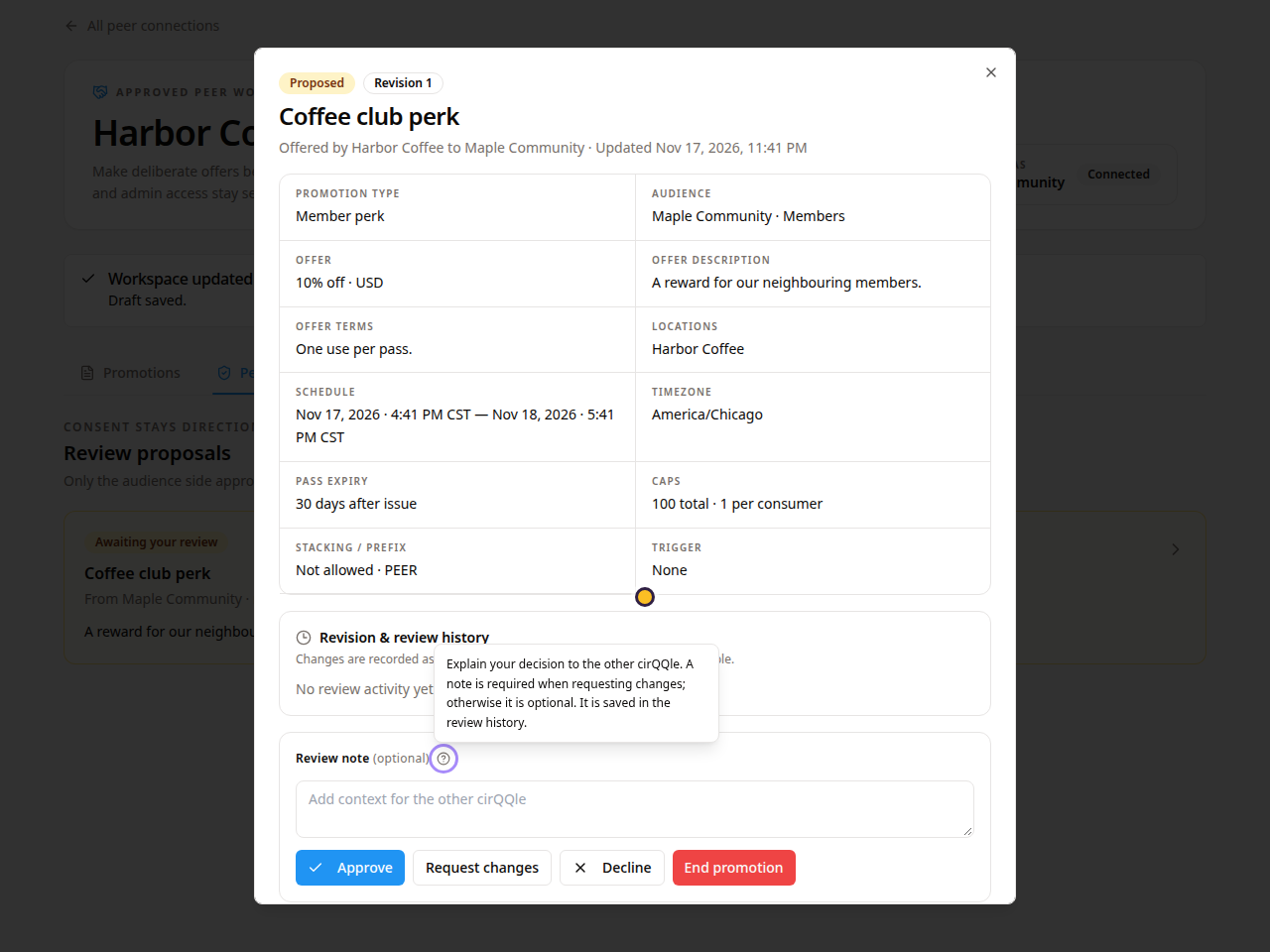
Changes are versioned. Editing a new draft does not silently replace the approved version. Submit changes for the required review.
5. Understand promotion stages
- Draft: work saved but not proposed.
- Proposed: submitted for review. Review status explains pending approval, requested changes, or a decline.
- Live: approved and within its valid date window; mobile eligibility rules still apply.
- Paused: temporarily stopped. Either side can pause; use the available resume action when appropriate.
- Expired: the promotion's end time has passed.
- Ended: deliberately finished. Ending is not the same as temporarily pausing.
6. Configure auto-approval
Open Settings. Auto-approval is off by default and is configured independently for each side of a partnership. It becomes available only after the relationship has had a promotion actually live. It does not bypass required offer validation. Check Amplify activations per week: the audience cirQQle's cap is shared across its peer partnerships and follows that audience's local calendar week. These settings save when changed.
7. Read redemption reports
Open Reports. Choose From, Through, Promotion, Location, and Pass status as needed. Date filters select passes by their issue dates, not their redemption dates. A location filter includes passes redeemed at that location.
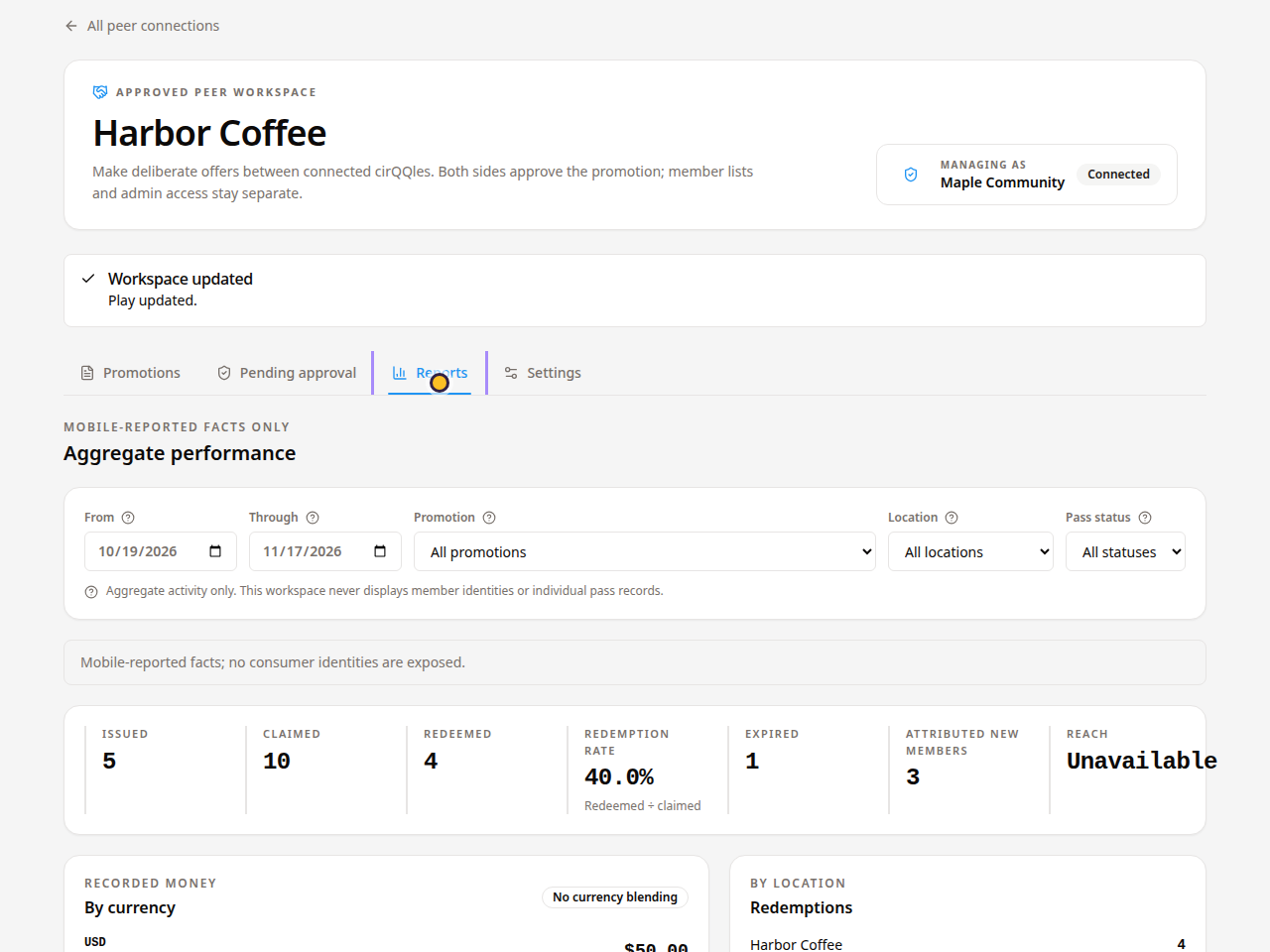
Reports include available issued, claimed, redeemed, expired, redemption-rate, location, and promotion totals. Monetary results stay separated by currency. Attributed new members and discount costs are restricted to the offering side. Unavailable metrics do not mean zero. No member identities or individual pass records are displayed here.
Disconnecting and consumer activity
Either peer's admin may choose Disconnect and confirm. This ends that relationship and its active promotions, without deleting either cirQQle, members, or content. Past connections provide read-only history. Reconnecting needs fresh approval. Disconnecting does not itself erase previously issued pass records.
The separate mobile app handles customer eligibility, pass issuance, redemption, expiration, and checkout validation. Creating a connection or draft in this admin app does not redeem a customer's offer.
Need help?
- Cannot find a peer: enter at least two characters and check whether the business is already your direct parent or child.
- Invitation still pending: the other cirQQle's admins must accept. An accepted email delivery request does not prove inbox delivery.
- Cannot edit or approve: check the selected cirQQle, your admin permissions, the offering/audience side, and the promotion's current stage.
- Auto-approval unavailable: first establish a promotion that is approved and actually live.
- No report values: check filters and whether the mobile app has recorded activity; unavailable data is shown honestly rather than invented.
- Not sure what a field means: hover, focus, or tap its question-mark help button.