How do I manage Parent and Child cirQQles?
Updated
Organize related cirQQles into parent and child relationships. Learn how to add a child, approve an invitation, view connections, and end a relationship without deleting either cirQQle.
Before you start
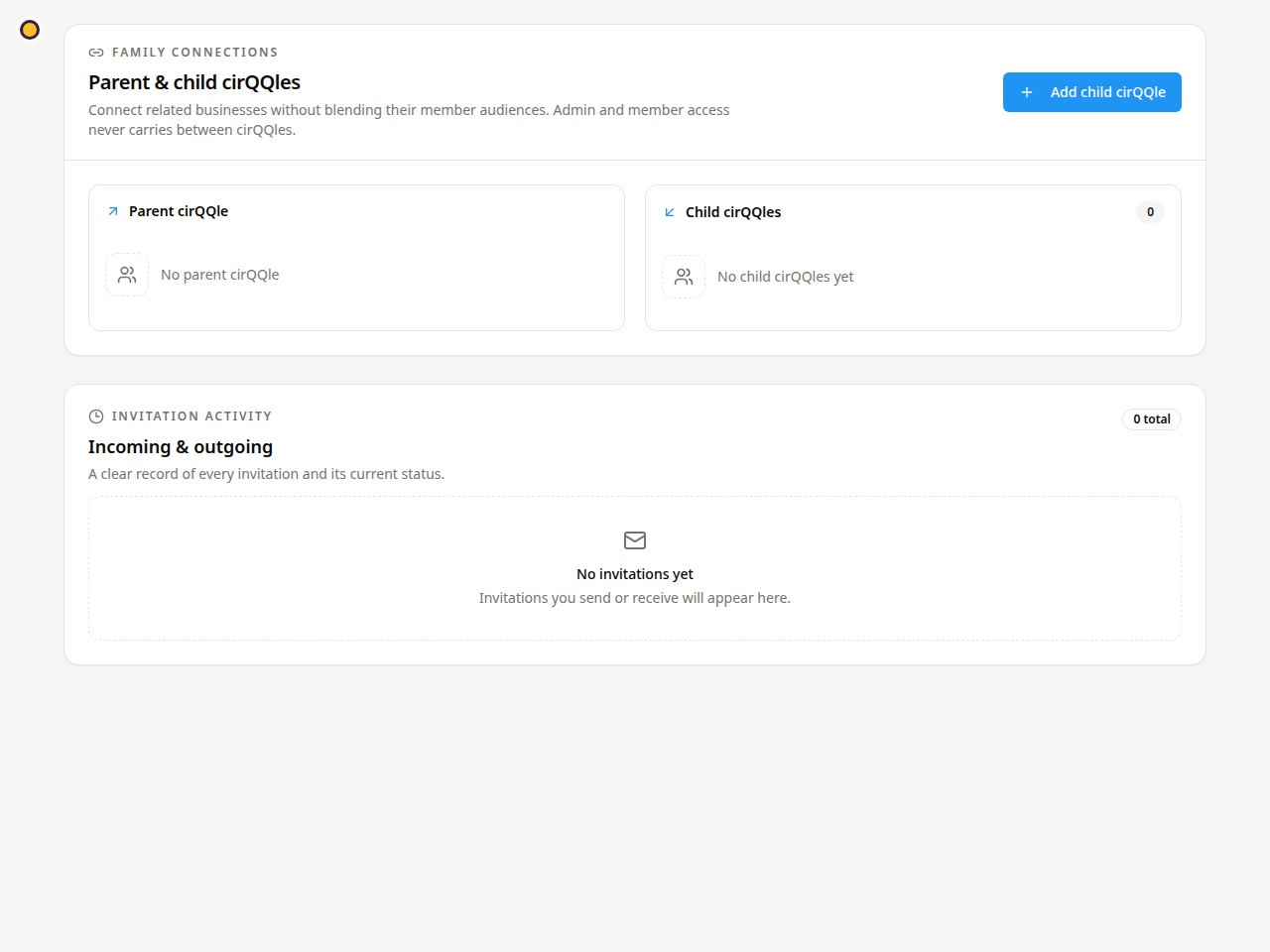
Select the cirQQle you want to manage and open Manage cirQQle → Connections. You must be an admin of that cirQQle to change connections. The panel is titled Parent & child cirQQles. These are family relationships, not the separate Peer Connections feature.
- A parent can have multiple children, but each child can have only one parent.
- The parent starts the process with Add child cirQQle. A child cannot send a request to add a parent.
- The relationship does not merge member lists, content, or admin permissions. Admin access never carries automatically from one cirQQle to another.
- A cirQQle cannot be its own parent or form a circular relationship. A direct peer cannot also be a parent or child of the same cirQQle.
Watch the tutorial
This silent, annotated video is about 2 minutes 9 seconds long. It uses the real interface with fictional businesses and simulated results. No actual connection, invitation email, or business record was created or changed for the recording.
Open or download the tutorial video.
Video transcript
- 00:00 — Start in Connections. In Manage cirQQle, open Connections for the business you administer. Fictional examples and simulated outcomes are used throughout.
- 00:12 — Search for a child. Choose Add child cirQQle. Type at least two characters, find the business, then choose Select.
- 00:21 — Link when you manage both. Can link immediately means you administer both cirQQles. Check the parent-to-child direction, then choose Confirm link.
- 00:30 — Check the new relationship. A parent can have multiple children. Each child has only one parent. Linking does not merge members, content, or admin permissions.
- 00:44 — Invite another business. For a business you do not administer, choose Select, then Send invitation. The other cirQQle's admins must accept before it becomes a child.
- 00:53 — Track outgoing invitations. Incoming & outgoing shows invitation status and email-provider results. Provider acceptance is not proof of inbox delivery. Email links open cirQQles Hub.
- 01:00 — Review as the invited child. An admin of the invited cirQQle can Accept or Decline. The parent starts the invitation; a child cannot request a parent here.
- 01:09 — Accept the parent connection. Check the direction and confirm acceptance. The Parent cirQQle panel then shows the relationship. This is a simulated acceptance.
- 01:25 — Remove a child safely. On the parent side, Remove child opens a confirmation. Remove connection ends only the relationship, not members, content, or descendants. Cancel keeps it.
- 01:35 — Leave a parent safely. On the child side, Leave parent opens a confirmation. Confirm leave ends the relationship without needing the parent's approval. Cancel keeps it.
- 01:50 — Understand unavailable results. A cirQQle that already has a parent cannot be added again. A direct peer cannot also be a parent or child of the same cirQQle. Cycles are not allowed.
- 01:59 — Keep each cirQQle independent. Existing content and permissions stay separate. Reconnecting needs a new link or invitation. Review the selected cirQQle before making changes.
1. View your current relationships
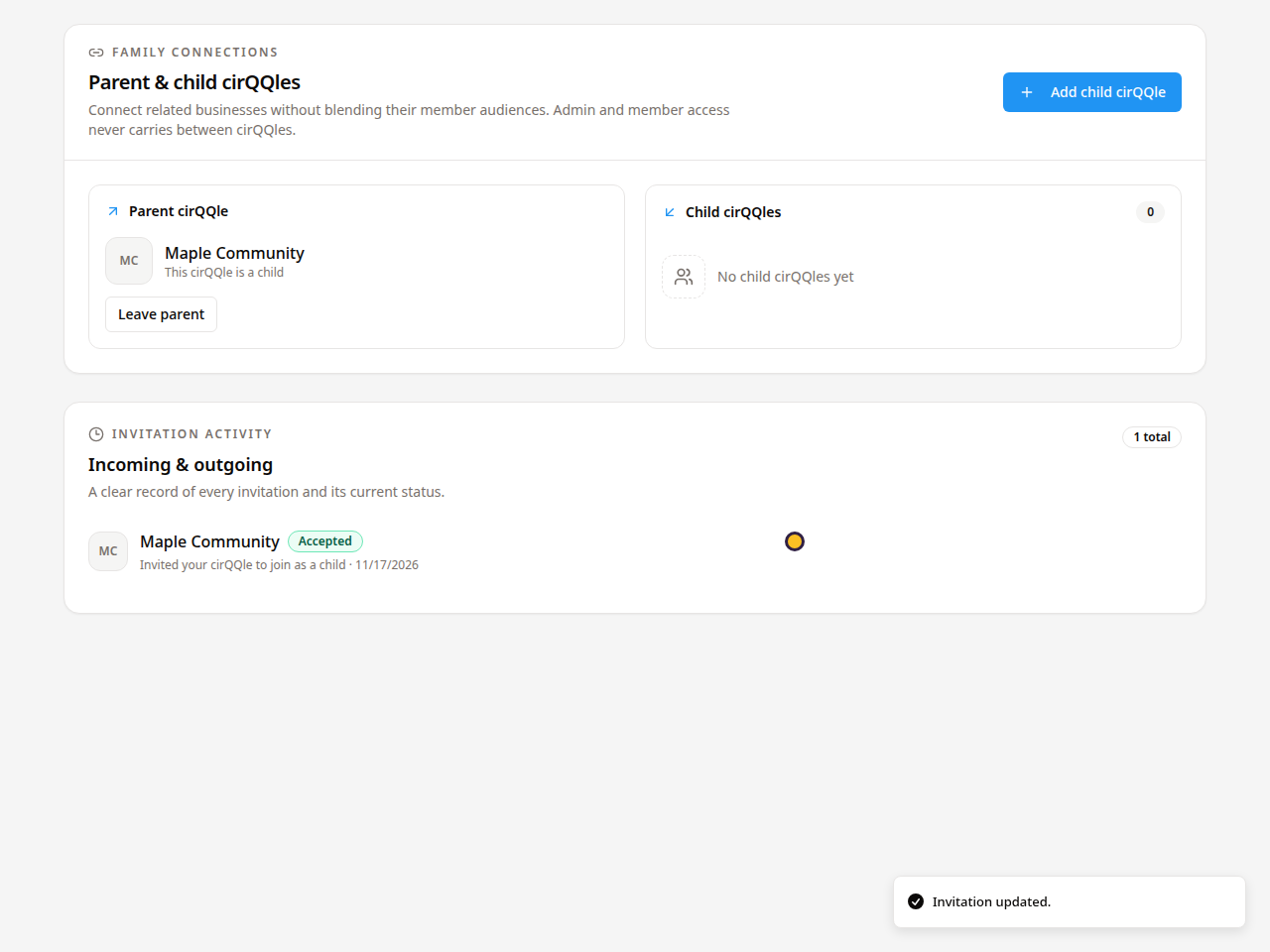
On the Connections tab, the Parent cirQQle panel shows this cirQQle's parent, if one exists. The Child cirQQles panel shows the children of the selected cirQQle. Empty panels show No parent cirQQle or No child cirQQles yet.
2. Search for a child cirQQle
- While the proposed parent is selected, choose Add child cirQQle.
- Enter at least two characters in Search cirQQles….
- Find the intended business and review its availability. If more results are available, use Load more results.
- Choose Select beside the correct business.
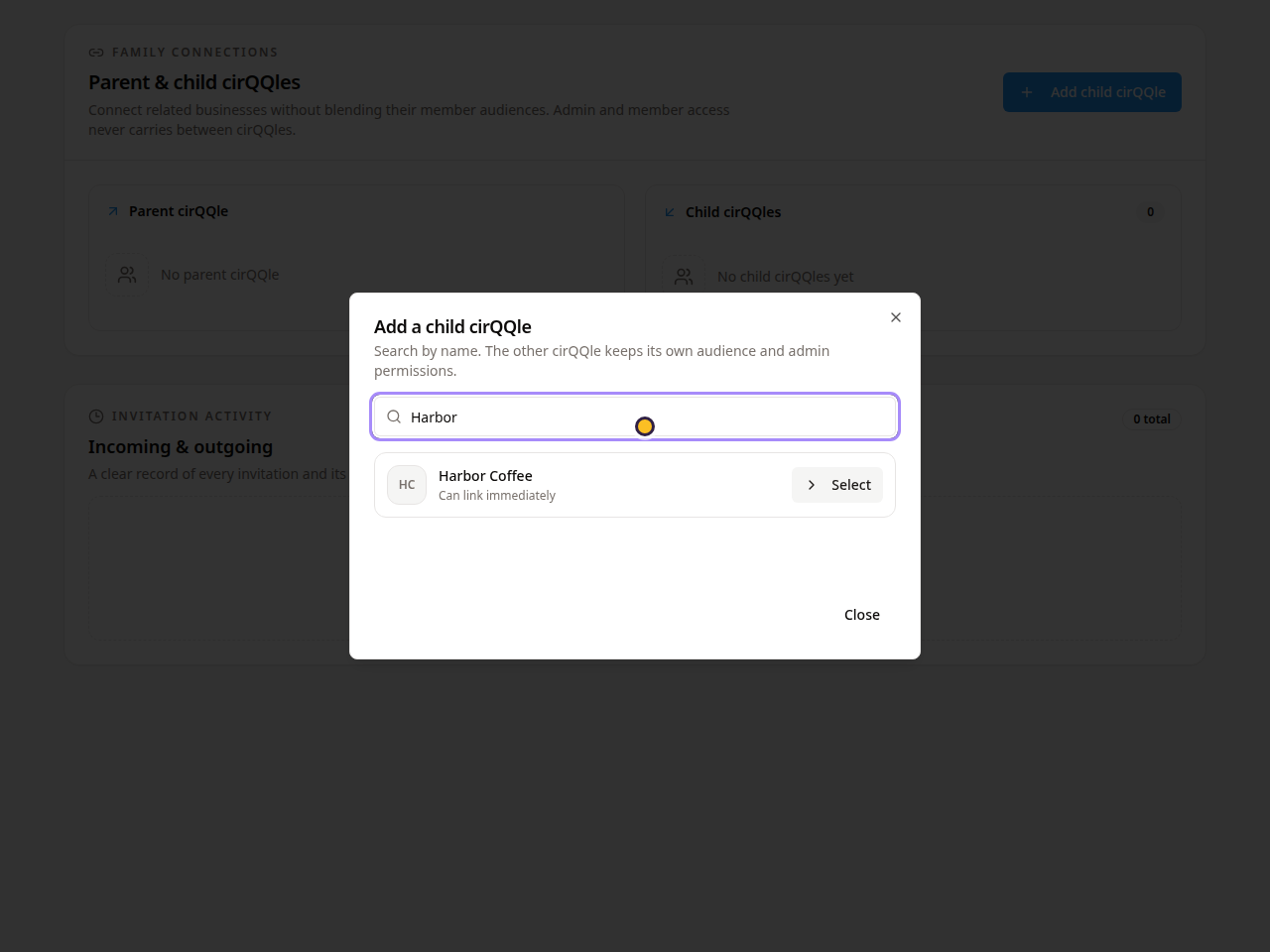
An unavailable result explains why it cannot be selected. For example, a cirQQle that already has a parent must leave that relationship before it can join a different parent. Other restrictions are checked again when a link or invitation is accepted, because circumstances may have changed since the search.
3. Link immediately when you administer both
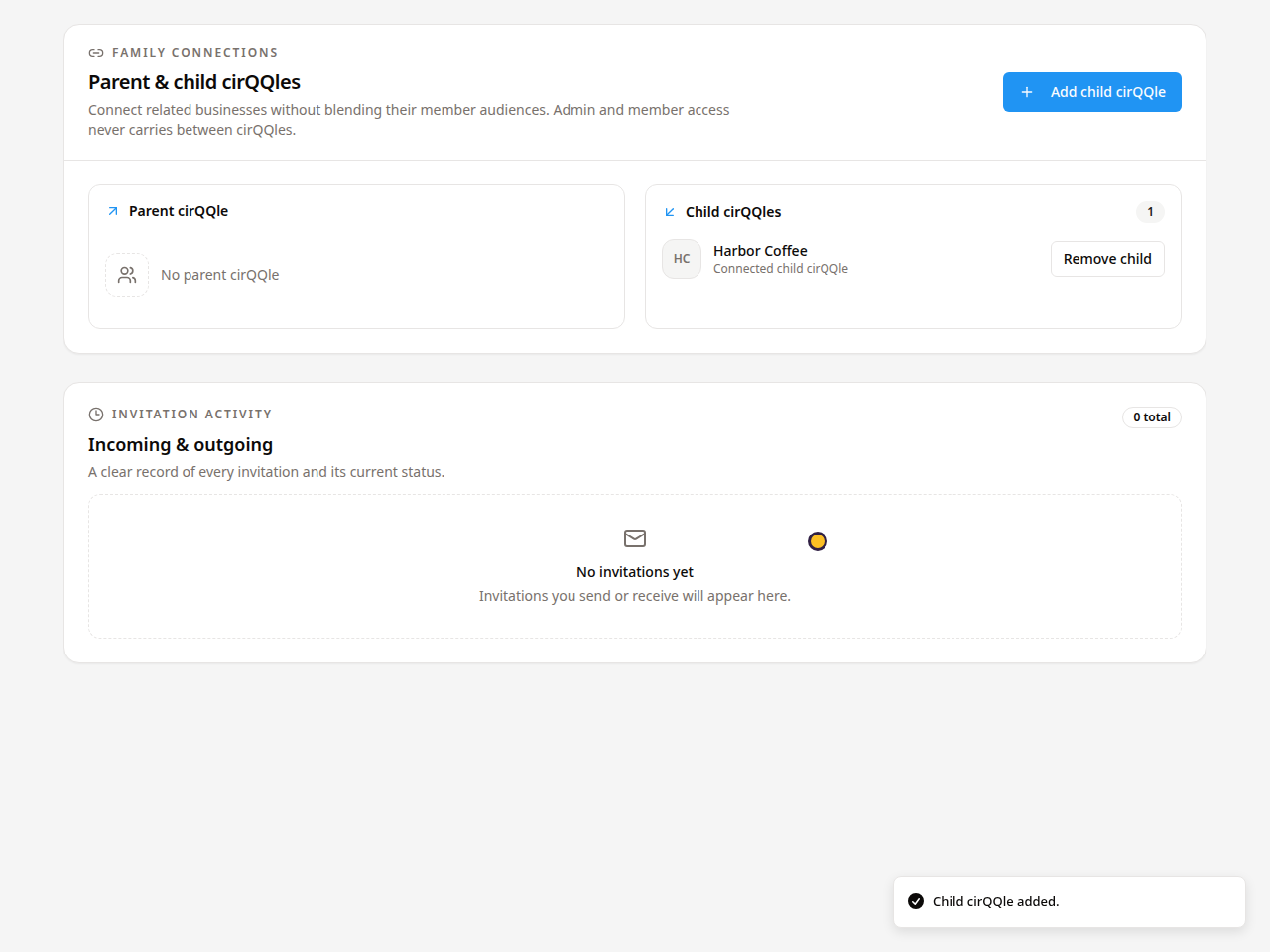
- If the result says Can link immediately, review the Link this child cirQQle now? confirmation.
- Check that the selected business should become a child of the cirQQle you are currently managing.
- Choose Confirm link. Choose Cancel if the direction or business is wrong.
- The child appears under Child cirQQles. When you select that child's cirQQle, its Parent cirQQle panel shows the parent.
4. Invite a child when you do not administer both
- Select a search result marked Invitation required.
- Read the Send a child invitation? confirmation.
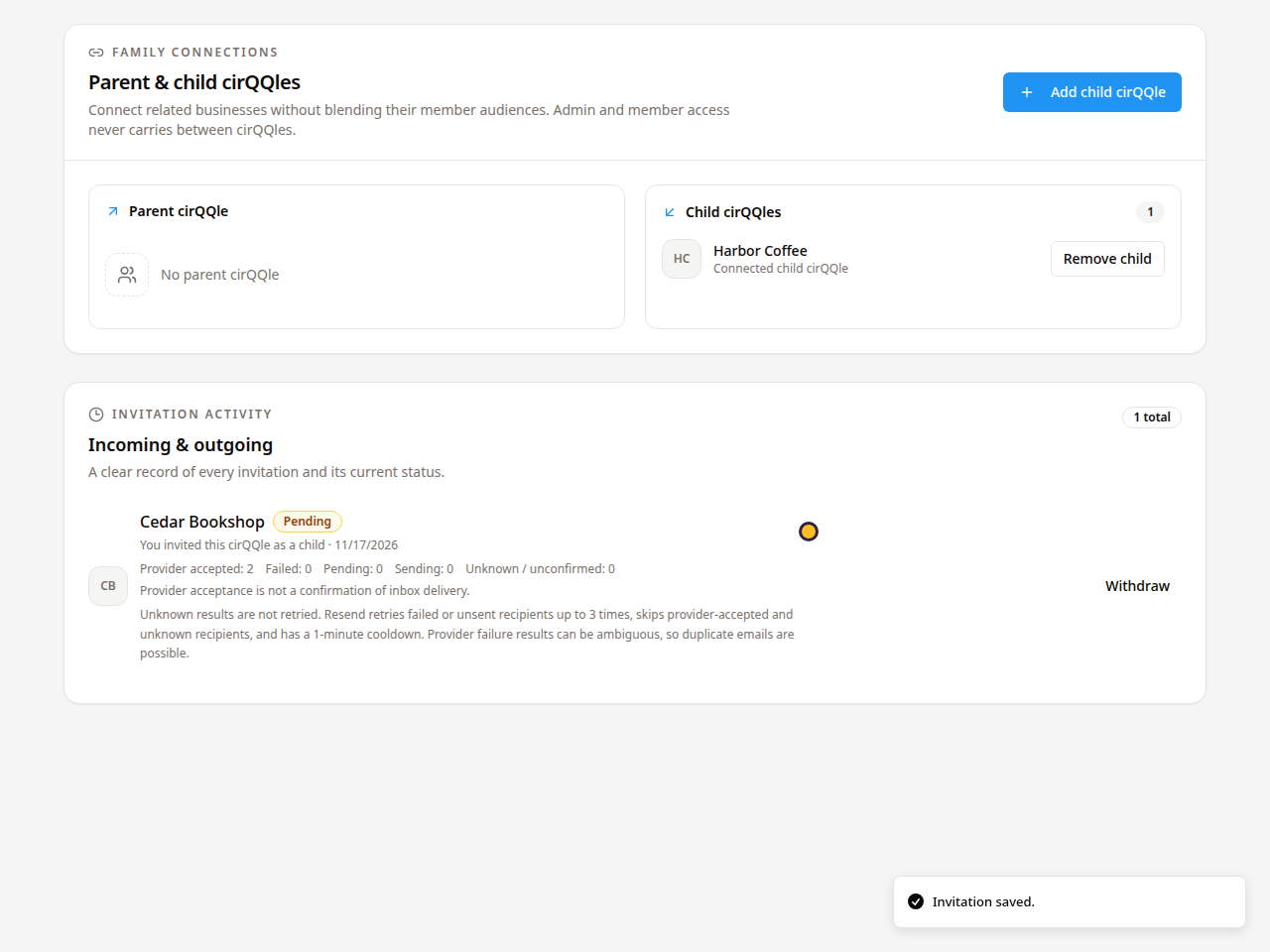
- Choose Send invitation. The app sends an invitation email to the proposed child's admins who have deliverable email contacts.
- Check Incoming & outgoing for the invitation. It remains pending until an eligible admin accepts; sending the invitation alone does not connect the cirQQles.
Connection emails link to https://hub.cirqqles.com. Sign in with the appropriate account and use the relevant cirQQle context to review the invitation. Do not assume that clicking the email automatically accepts a relationship.
5. Accept or decline as the invited cirQQle
- An admin of the proposed child selects that cirQQle and reviews the incoming invitation.
- Choose Accept or Decline.
- If accepting, review Accept this child relationship?. Confirm the direction, then choose Accept relationship.
- If declining, confirm with Decline invitation. The invitation is marked declined and no connection is created.
- After acceptance, the child sees its parent in Parent cirQQle; the parent sees the child in Child cirQQles.
6. Understand invitation status and email delivery
Incoming & outgoing keeps the invitation record and its current status, including pending, accepted, declined, withdrawn, or expired. An invitation that conflicts with current relationship rules cannot create a connection.
- Withdraw: the sender can withdraw a pending invitation. Confirm with Withdraw invitation. It can no longer be accepted.
- Resend: when available, retries eligible failed or unsent recipients. Review the warning and choose Retry eligible emails.
- Provider accepted: means the provider accepted the delivery request, not that the message reached an inbox.
- Unknown / unconfirmed: is not treated as a safe retry. Already accepted and unknown outcomes are skipped.
Retries have a one-minute cooldown and a maximum of three attempts per recipient. Provider failures can be ambiguous, so duplicate emails are possible. If no deliverable admin contacts are available, a saved invitation is not proof that any email was sent.
7. Remove a child or leave a parent
From the parent
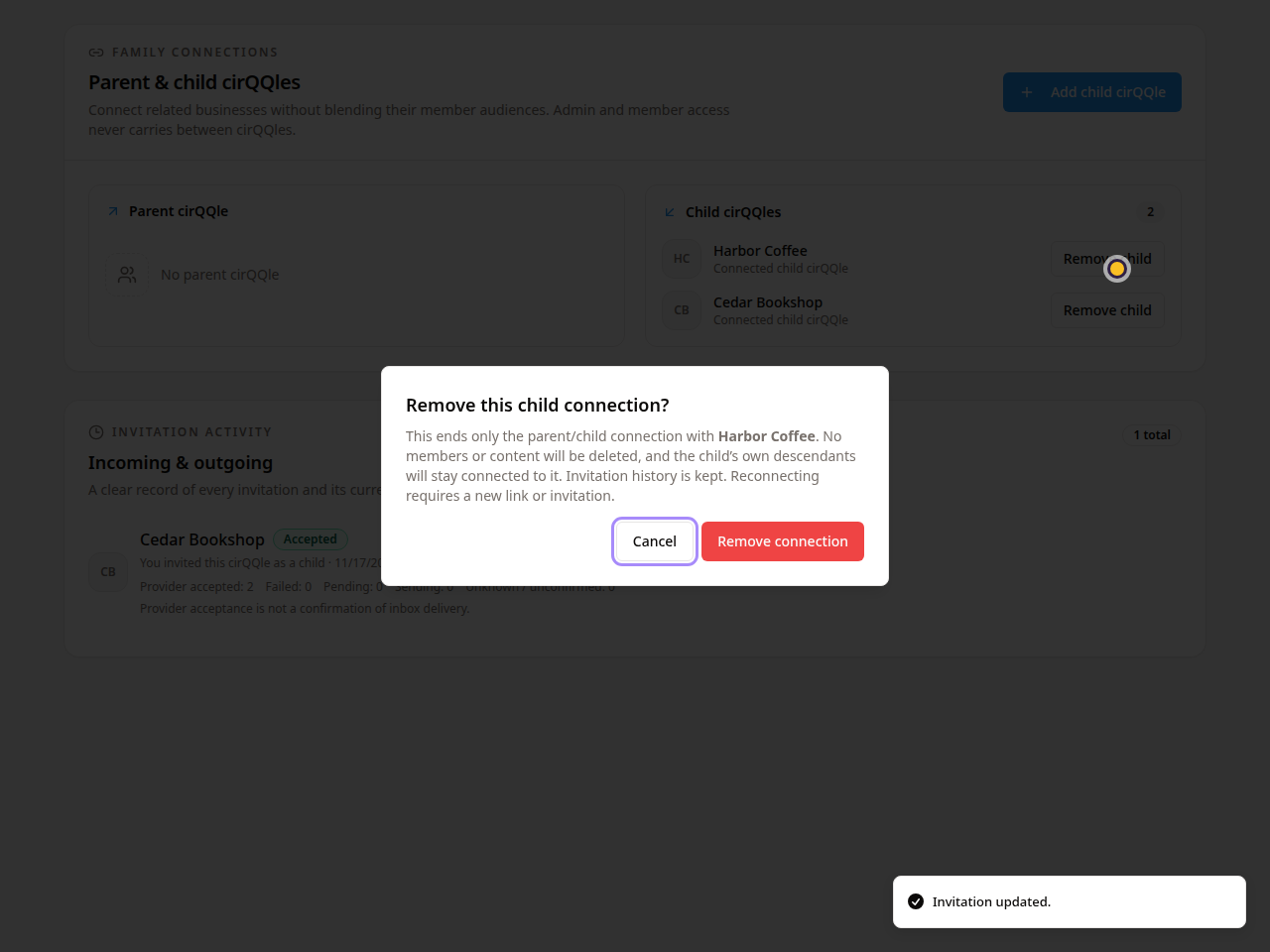
- Choose Remove child next to the intended child.
- Read Remove this child connection?.
- Choose Remove connection to end the relationship, or Cancel to keep it.
From the child
- Choose Leave parent in the Parent cirQQle panel.
- Read Leave this parent cirQQle?.
- Choose Confirm leave to end the relationship, or Cancel to keep it.
Either side's current admin may end the relationship without the other side approving. This ends only that parent/child connection. Both cirQQles, their members and content, the child's own descendants, and invitation history are preserved. Reconnecting requires a new immediate link or a fresh invitation; an old accepted invitation does not restore a removed relationship.
What happens next?
Review the selected cirQQle's parent and child panels to confirm the intended structure. A relationship by itself does not copy all content or give an admin access to the other cirQQle. Use each feature's explicit child-sharing choices where offered; do not assume everything is shared automatically.
Need help?
- Add child cirQQle is disabled: confirm you have selected a cirQQle and have permission to administer it.
- No result appears: enter at least two characters and check the business name. Use Load more results if offered.
- This cirQQle already has a parent: its existing connection must be ended before another parent can be added.
- Invitation remains pending: an eligible admin of the invited cirQQle must accept. Provider acceptance does not confirm inbox delivery.
- The relationship cannot be accepted: a parent, peer, or circular-relationship restriction may have changed since the invitation was sent. Refresh and check current connections.
- Connections could not load: use the displayed retry control. If the page says connections are being set up, try again later; do not assume a relationship was created.