How do I pin and unpin items in my cirQQle?
Updated
Use a pin to select one important item for your cirQQle. You can pin a post, poll, announcement or event. There is one shared pin per cirQQle, not one per content type. Pinning something new replaces the previous pin without deleting the previous item.
Before you start
- Sign in as the cirQQle's owner or an administrator and select the correct cirQQle.
- Open Posts, Polls, Announcements or Events in the navigation.
- Choose content belonging to that cirQQle that is published, active and not expired. Drafts and inactive or unavailable items cannot be pinned. For events, availability is checked against the end date, or the start date if there is no end date. A past start date without a later end date is not eligible.
All examples below are fictional. Pin changes in the recording are simulated; no real posts, community pins or notifications were changed. This guide shows pin management in cirQQles Command Center; it does not establish where or how a separate member-facing app displays the pin.
Watch the tutorial
This silent walkthrough uses fictional data and simulated pin changes. No real content or community pins were changed.
Open or download the tutorial video.
Video transcript
- 00:00 — One shared pin. Owners and administrators can pin a post, poll, announcement or event. Only one item is pinned per cirQQle, across all four types. Fictional data; all pin changes here are simulated.
- 00:13 — Pin a post. Open the post's three-dot menu. Choose Pin post to cirQQle. The change is immediate. Use published, active, unexpired content in the selected cirQQle.
- 00:30 — Preview the content. Currently pinned shows the item's type and title, image and content. Select Show more to read long text; Show less collapses it. An image is shown only when available.
- 00:49 — Manage the pinned item. The same pin appears on all four content pages. Open Polls, then select Manage post in the shared summary. Manage opens the matching content page; it does not change the pin.
- 01:04 — Replace it with a poll. Open Polls and the poll's three-dot menu. Choose Pin poll to cirQQle. The poll replaces the post. The previous post is not deleted.
- 01:23 — Pin an announcement. Open Announcements and its three-dot menu. Choose Pin announcement to cirQQle. This replaces the poll, rather than adding a second pin.
- 01:42 — Pin an event. Open Events and select Pin to cirQQle on the event. The event must be active and published. Its end date must be in the future; if absent, the start date is used.
- 02:01 — Unpin from the summary. Select Unpin beside Currently pinned. The pin is removed immediately. The event stays in your list. Unpin does not delete it.
- 02:17 — Unpin on the item. You can also unpin using the item's own control. Here, pin the event again, then select its Unpin button. Posts, polls and announcements use Unpin in their three-dot menu.
- 02:35 — Changes apply now. No Save Preferences step is needed. Draft, inactive, expired or unavailable content cannot be pinned. Unavailable pinned content is no longer returned as an active pin. Check permissions and refresh if needed.
1. Find an eligible item
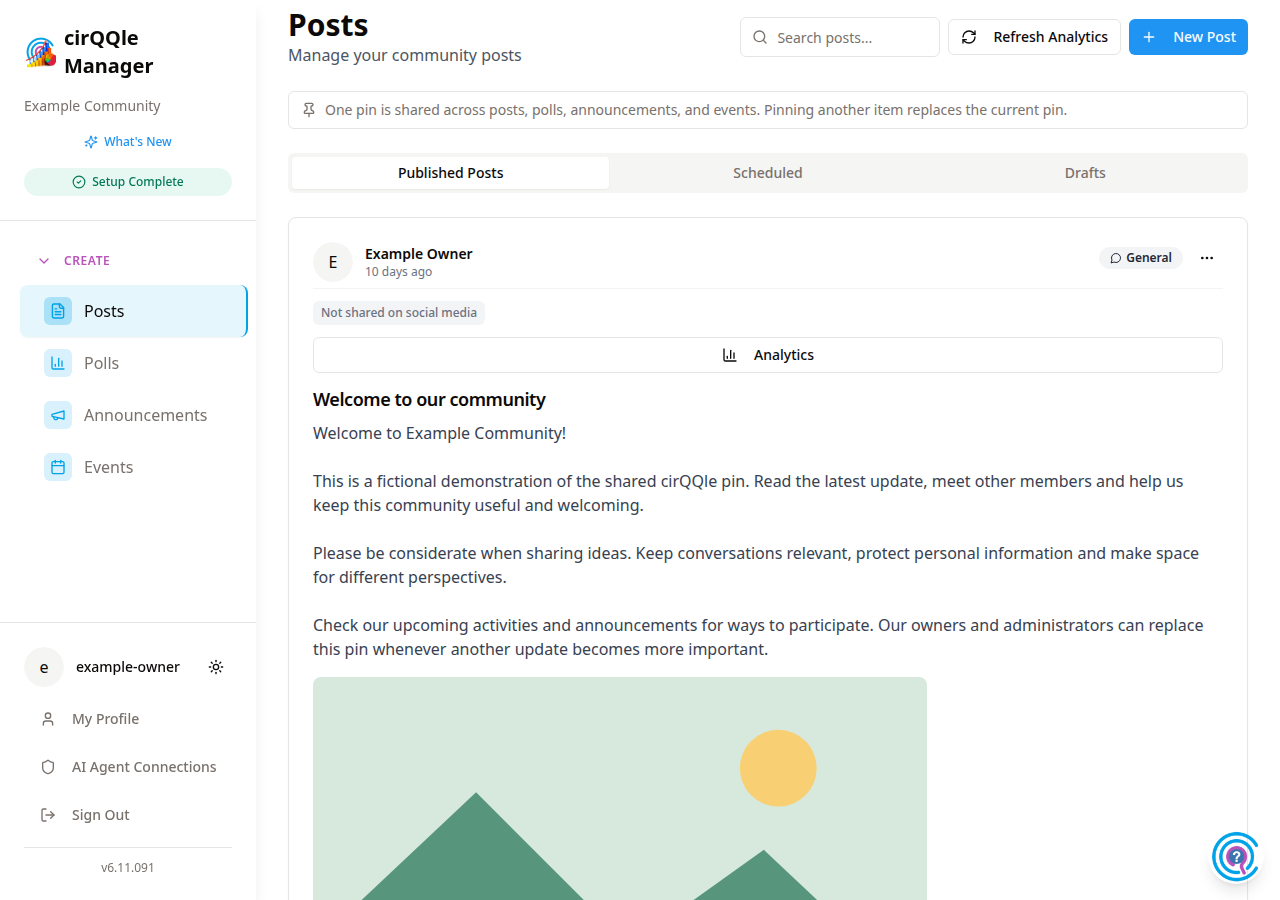
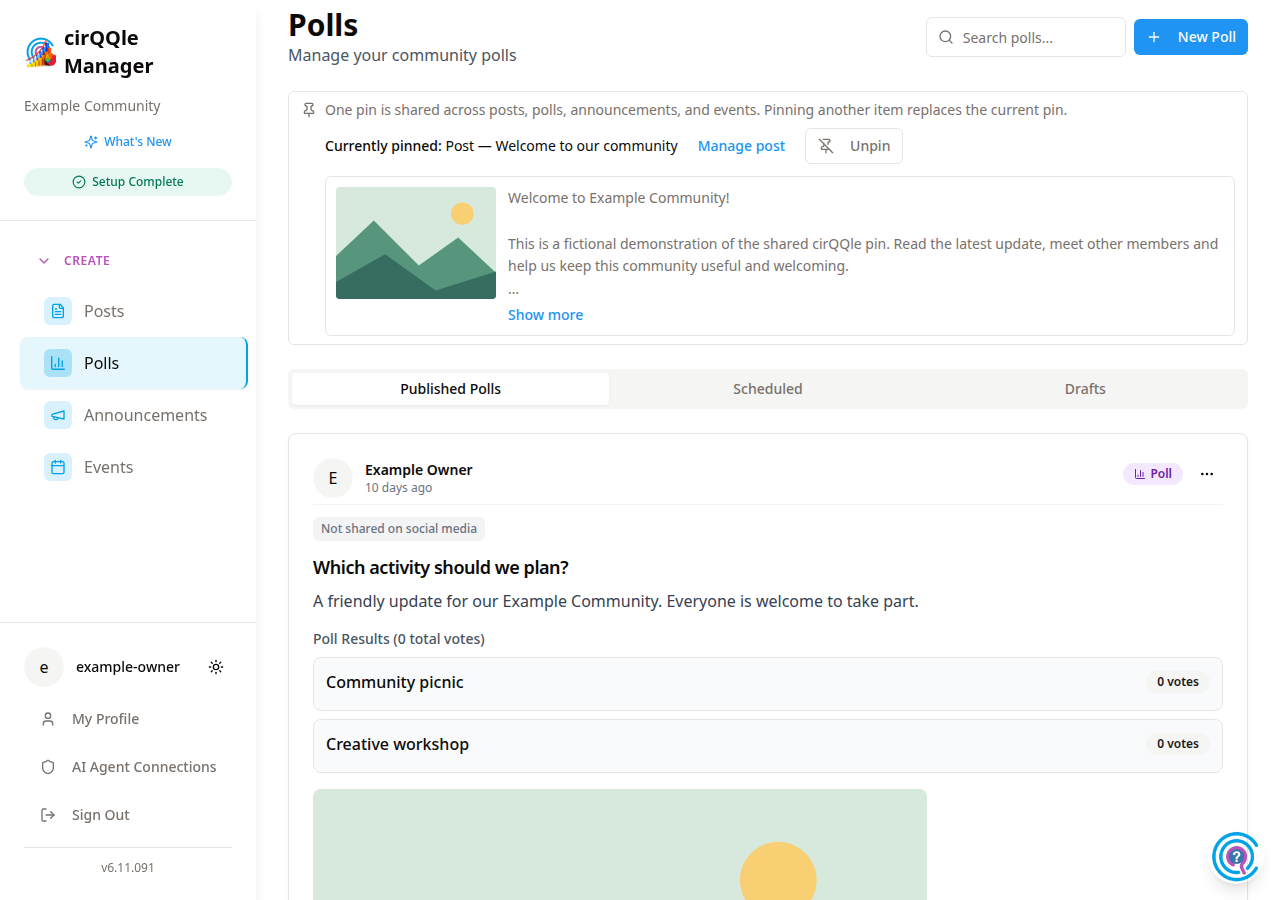
Select your cirQQle, then open the content page you need. Near the top, the shared summary explains that pinning another item replaces the current pin. If an available item is pinned, the same Currently pinned summary appears across all four content pages.
2. Pin a post
- On Posts, open the post's three-dot menu.
- Select Pin post to cirQQle.
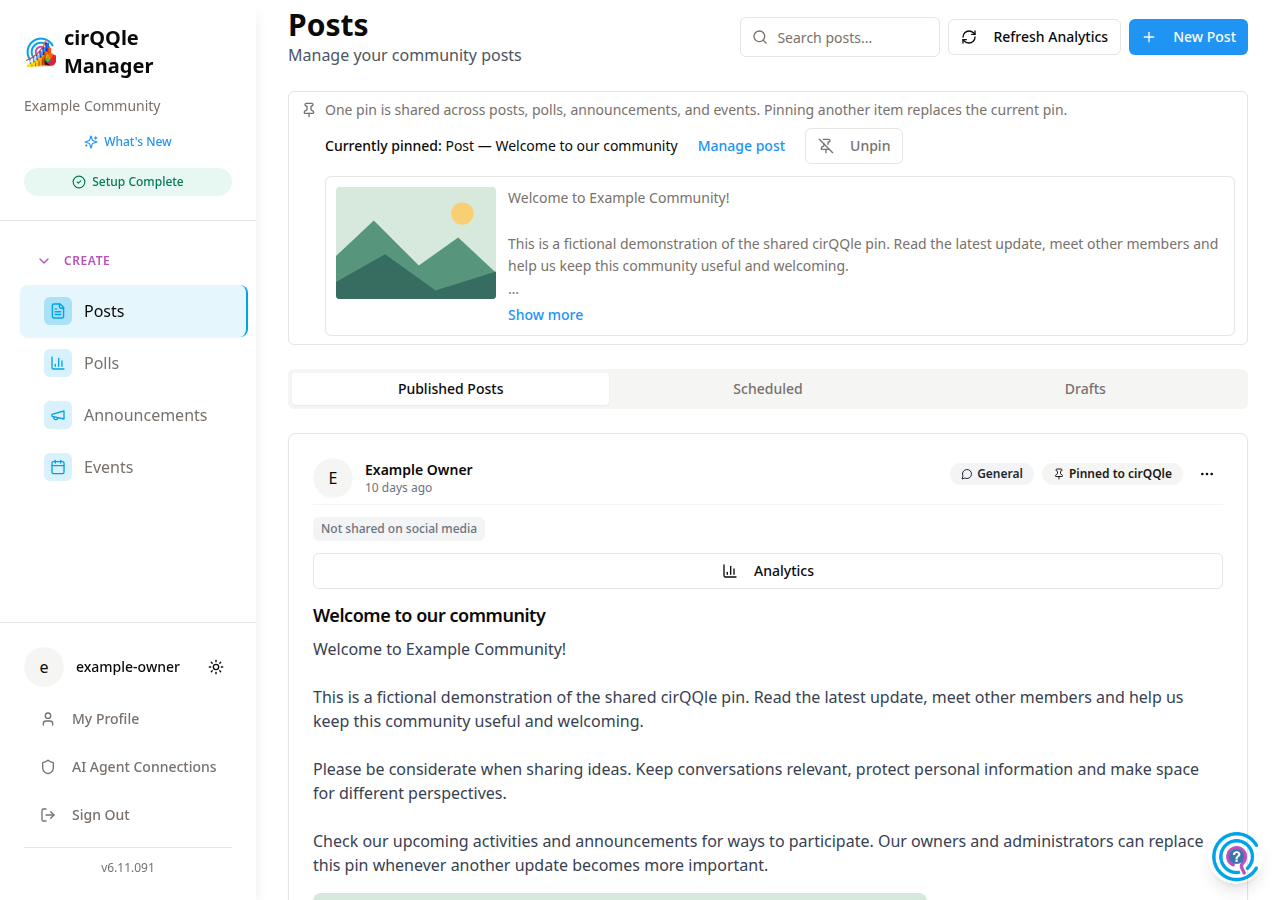
- Look for Currently pinned: Post and the item's title. The item also receives a Pinned to cirQQle badge.
The change takes effect immediately after the successful response. You do not need to visit Preferences or select Save Preferences. If nothing was previously pinned, the success message is Item pinned to this cirQQle.
3. Read the pinned-item preview
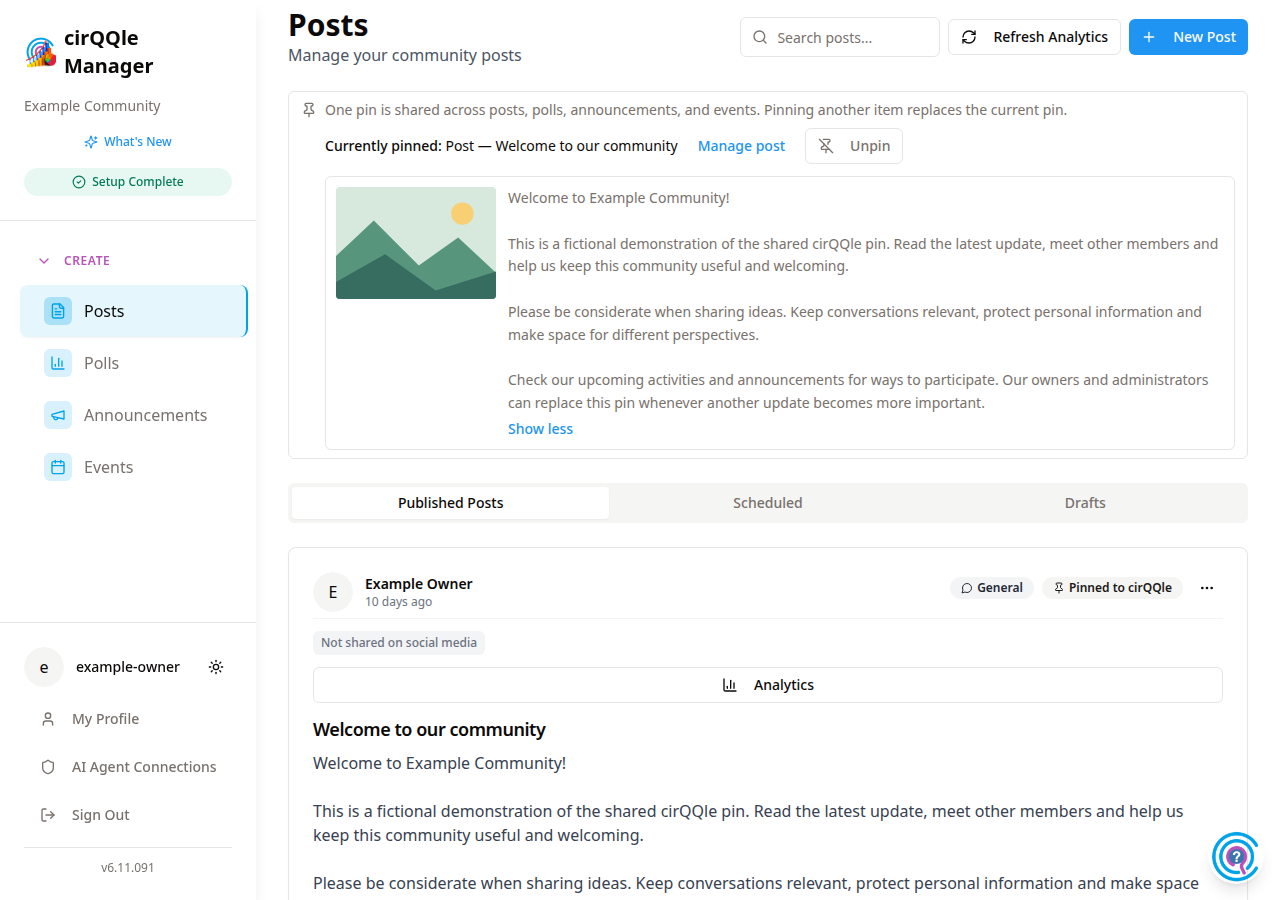
The summary displays the item's image when one is available, along with readable content when present. Long content has Show more; select it to expand the preview, then Show less to collapse it. An item without an image does not gain a placeholder photo. If an image cannot load, the preview can still show its text.
4. Open the pinned item's management page
Select Manage post, Manage poll, Manage announcement or Manage event in the shared summary. The link matches the currently pinned type and opens that content page. It does not open an editor automatically or change the pin.
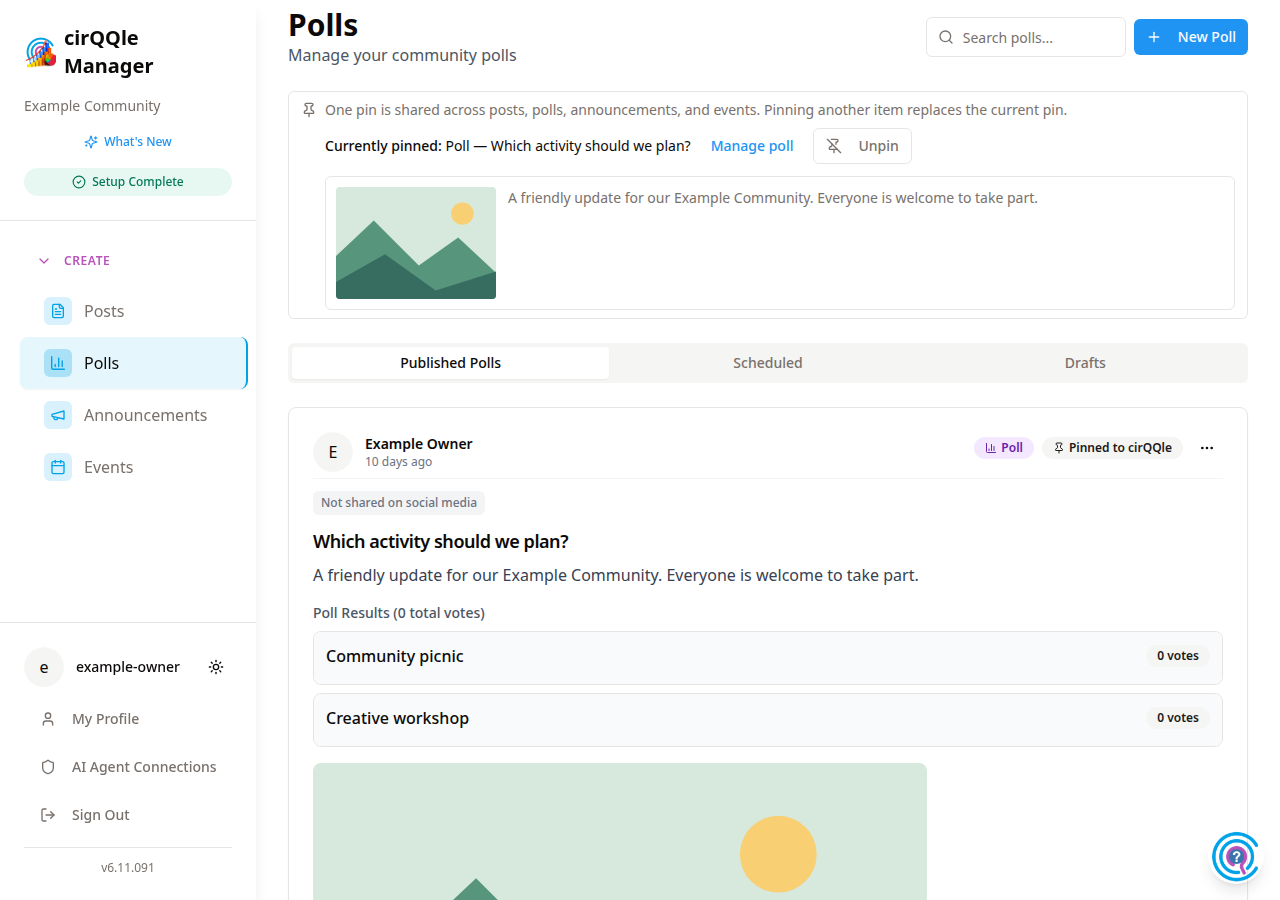
5. Replace the pin with a poll
- Open Polls and the eligible poll's three-dot menu.
- Select Pin poll to cirQQle.
- Check that Currently pinned now identifies the poll.
If another item was pinned, it is replaced immediately; there is no separate replacement confirmation step. The success message is Item pinned. The previous cirQQle pin was replaced. The previous item remains ordinary content rather than being deleted.
6. Pin an announcement
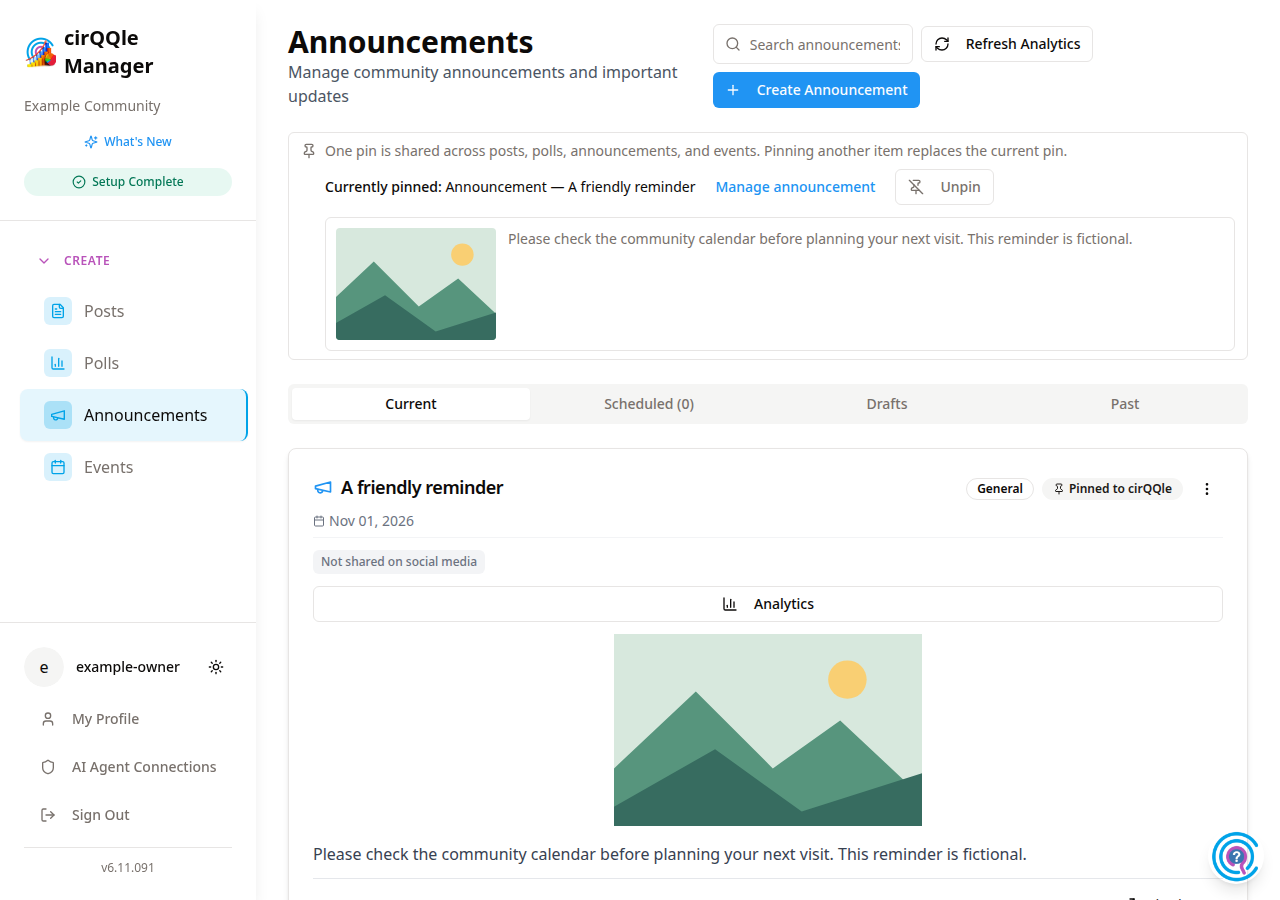
Open Announcements, open the eligible announcement's three-dot menu, then select Pin announcement to cirQQle. Check the updated title and preview. This replaces the poll or any other current pin.
7. Pin an event
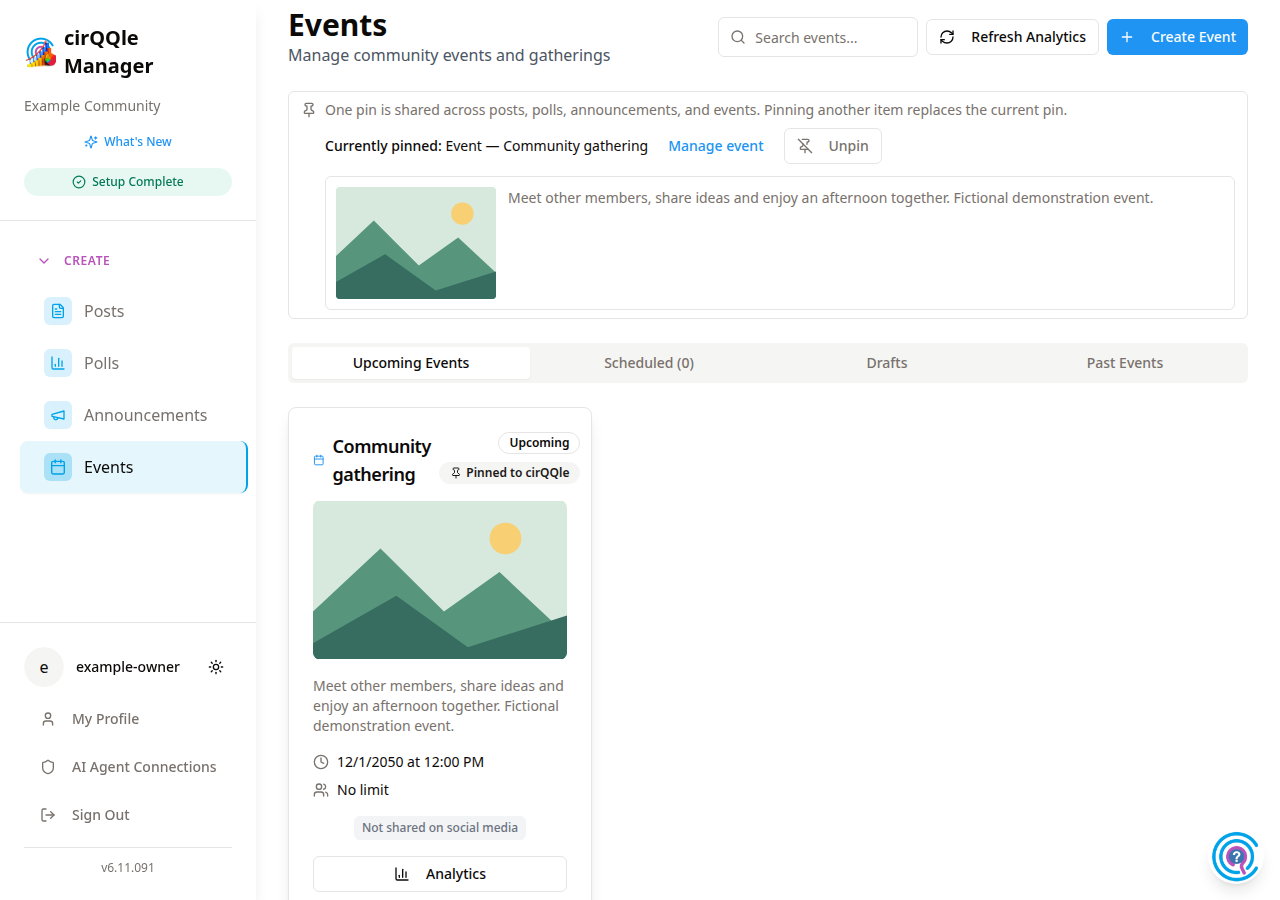
Open Events, find an eligible event and select its Pin to cirQQle button. Unlike the other three types, the event has a visible pin button on its card. Verify Currently pinned: Event and the event title in the shared summary.
The event must be published and active. When an end date is present, it must be in the future. Otherwise, the start date is used to determine whether it is still available. An event without either date is not excluded by the pin's date check alone; other event creation and availability rules still apply.
8. Unpin without deleting
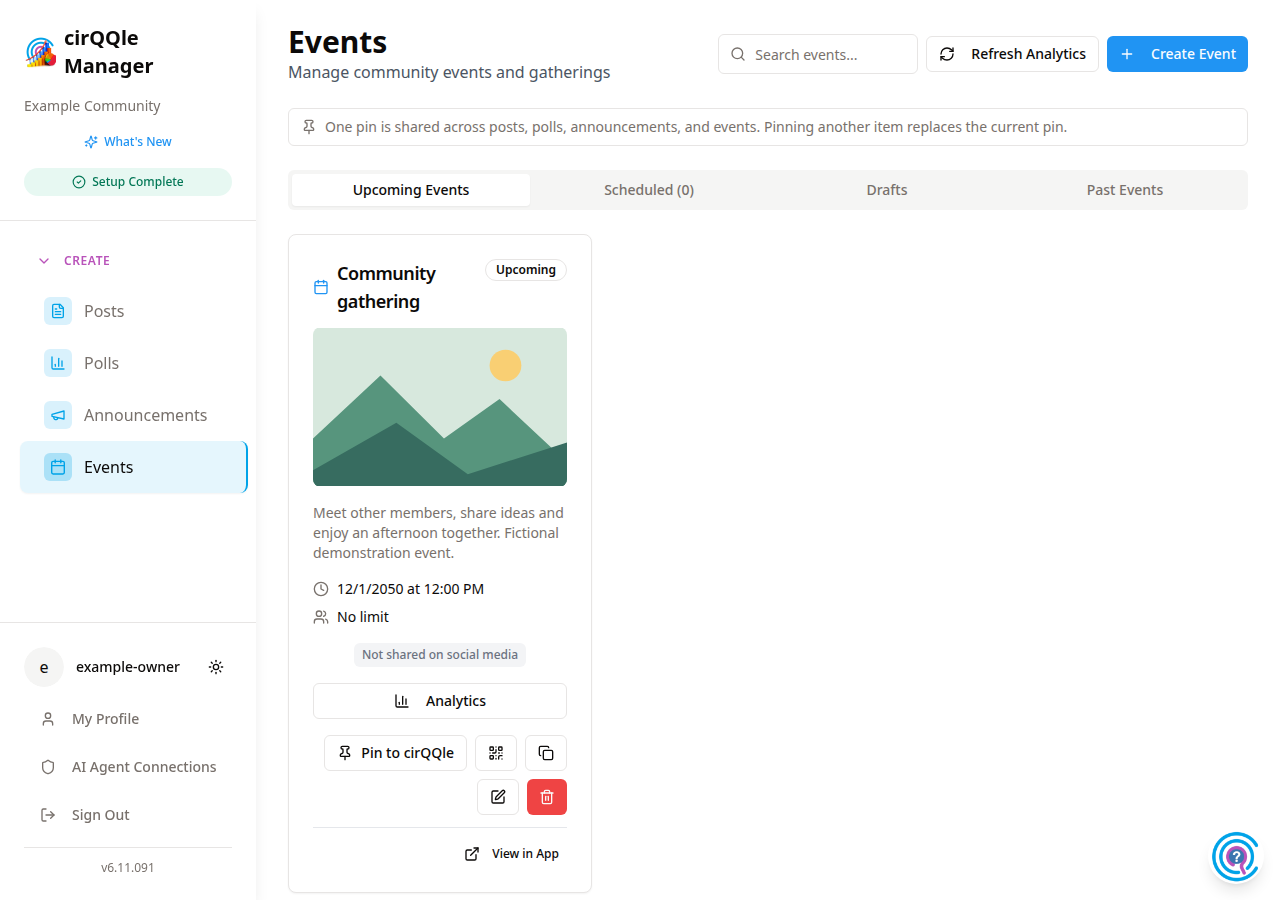
- In the shared Currently pinned summary, select Unpin.
- Check that the current-item title and preview disappear and the source item no longer has a Pinned to cirQQle badge.
- The original content remains in its content list. Unpin does not delete it.
You can also unpin from the source item's own controls: use Unpin post, Unpin poll or Unpin announcement in its three-dot menu, or the event card's Unpin button. Both paths change the same shared pin immediately. After success, the message is Item unpinned. You can pin the item again later if it remains eligible.
Expected result
You have either one available pinned item for the selected cirQQle or no pinned item. Replacing or removing a pin does not delete the original content and does not create an additional pin for another type. Review the title, preview and success message after each action.
Need help?
I cannot see a pin control
Check that you selected the intended cirQQle and have owner or administrator access there. Being a member or having a custom role name does not by itself grant pin-management permission. Also check that the source item is published, active, belongs to the current cirQQle and has not expired. Drafts and unavailable content do not have a new-pin action. Ask an administrator if the page says Community pins are not set up yet; do not attempt database changes yourself.
The pin disappeared
Another administrator may have unpinned it or pinned something else. Also, deleted, inactive, unpublished, moved or expired content is no longer returned as an active pin. Event availability uses the end date or, if absent, the start date. Time-based expiry is checked when pin data is read; the interface may need a refresh before you see the change. Do not assume previously unavailable content will automatically become pinned again: make it eligible, check the current summary and pin it again if needed.
I see an error instead of the summary
If you see Pin status could not be loaded, select Retry. Do not assume a pin change succeeded while the request failed. Check your connection, refresh and recheck the current cirQQle and its summary before trying again. If the selected cirQQle changed during an operation, reload before making another change.
Another administrator changed the pin at the same time
If you see The pin changed. Your list has been refreshed., review the latest summary before acting. An old Unpin action does not remove a newer replacement pin. If you receive a message that another administrator is updating the content, reload and try again.
I pinned an item, but where do members see it?
This article verifies the management controls and shared summary in Command Center. Member-facing placement and presentation depend on the app members use and must be checked there separately.