How do I join a cirQQle to manage my business?
Updated
Use Join a cirQQle to accept an invitation to help manage a business in cirQQles. You can follow these steps in the mobile app or in a browser.
Before you start
- You need a valid invitation for that cirQQle. Joining is invitation-only; entering an ID does not give you access by itself.
- Have the cirQQle ID from your invitation and use the email address that was invited.
- If you are new to cirQQles, keep that email inbox available. If you already have an account for the invited email, you can use its password instead.
About the screenshots: “Example Business,” “Example User,” and “you@example.com” are fictional examples. Use your own invitation details.
1. Open the cirQQle you were invited to join
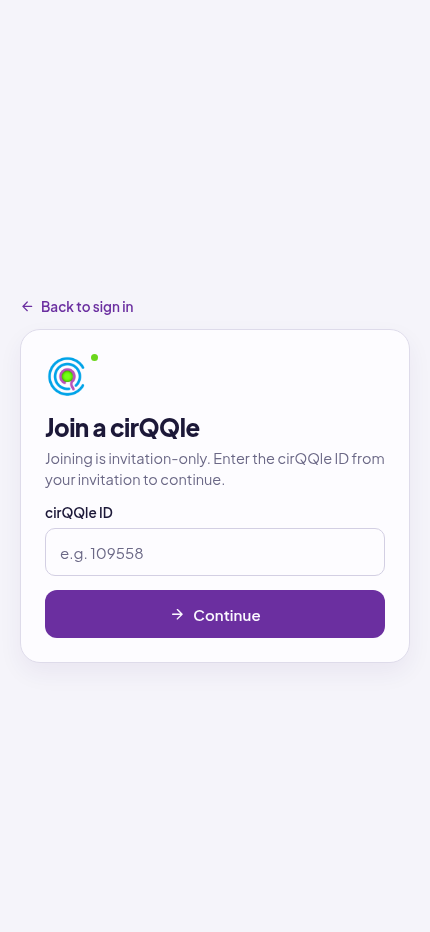
- On the sign-in screen, select Join a cirQQle, next to “Invited to a cirQQle?”
- Enter the cirQQle ID from your invitation and select Continue.
- Check the business name on the next screen. If it is not the business you expected, check the ID with the person who invited you before continuing.
If your invitation opens a direct Join link, the cirQQle may already be selected, so you can skip entering its ID.
2. Choose the right account path
New to cirQQles? Follow the email-verification steps below. Already have an account? Skip to “Already have a cirQQles account?” later in this article.
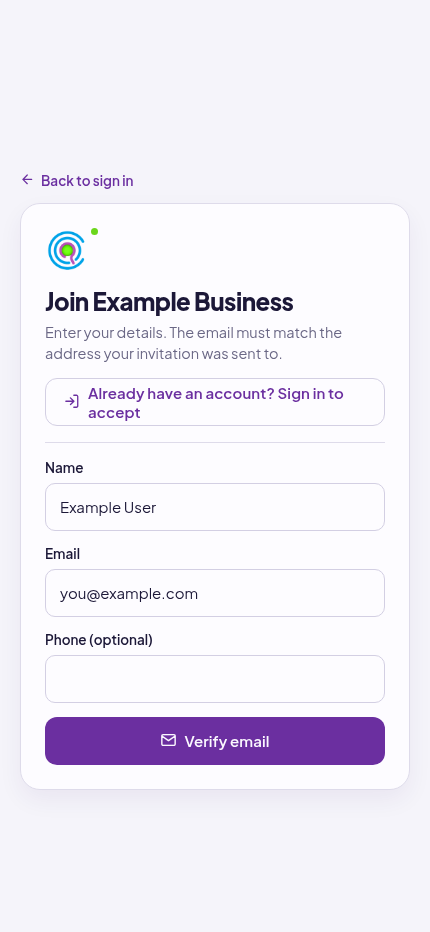
New to cirQQles: enter your details
- On Join [your cirQQle name], enter your Name and the invited Email. Phone (optional) can be left blank.
- Select Verify email. The next screen is Check your email.
Verify your email address
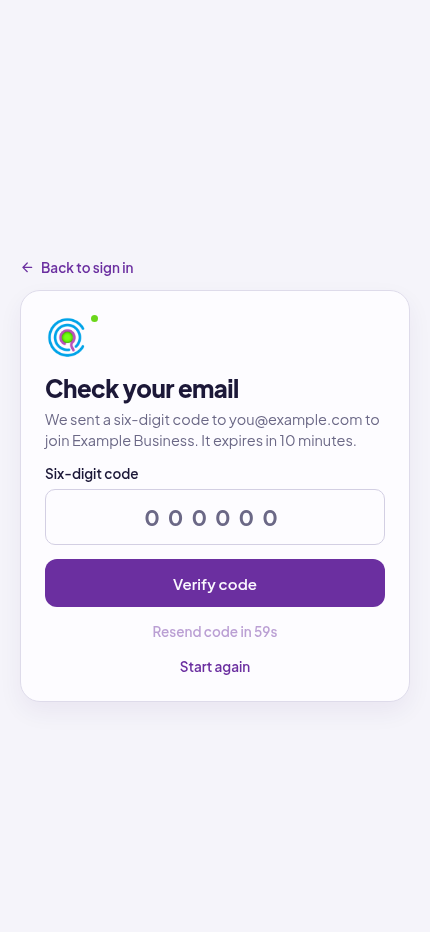
- Open the verification email sent to the address shown on screen.
- Enter its six-digit code and select Verify code. The code expires after 10 minutes. Do not share it with anyone.
Need another code? Wait for the resend countdown to finish, then select Resend code. The wait is at least 60 seconds. After a successful resend, use the newest email: the previous code stops working. If the email address is wrong, select Start again to correct it.
Create your password
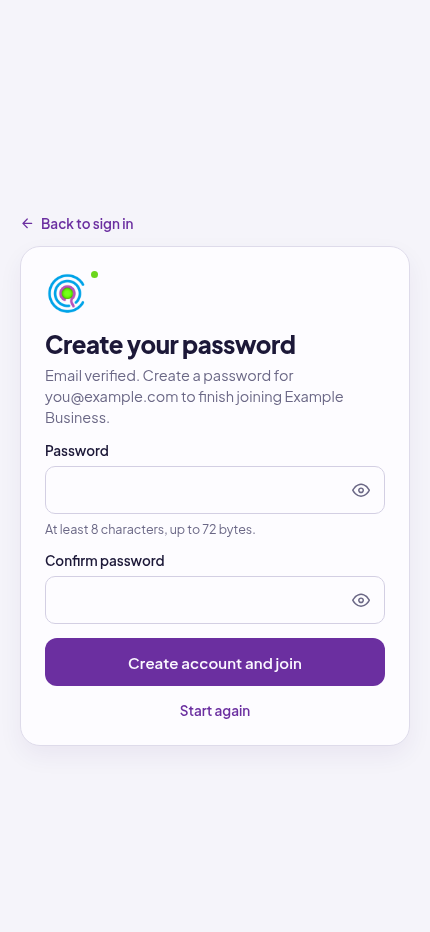
- On Create your password, enter a password of at least 8 characters in Password. The maximum is 72 bytes; some characters use more than one byte.
- Enter the same password in Confirm password, then select Create account and join.
- When you see Invitation accepted, check the displayed role. Select Sign in and use your email and password to start managing.
If the invited email already has an account and you use email verification, verifying the code accepts the invitation without creating a new password or changing your existing account details. Sign in with your existing password afterward.
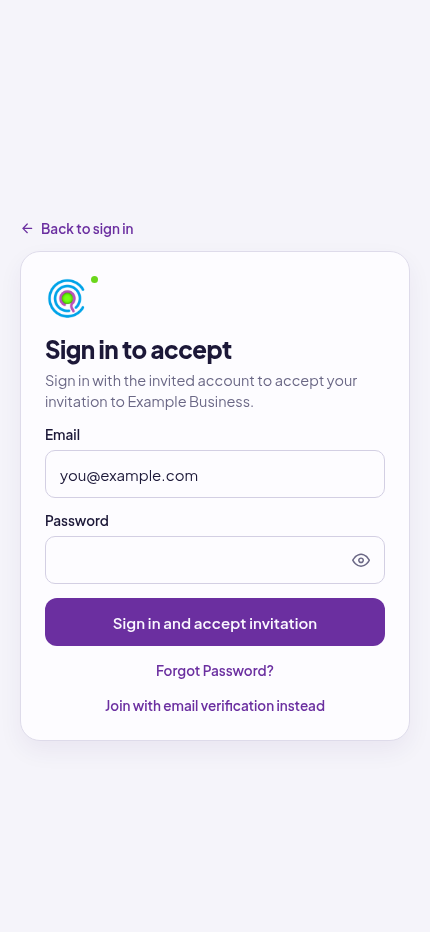
Already have a cirQQles account?
- On Join [your cirQQle name], select Already have an account? Sign in to accept.
- On Sign in to accept, enter the invited account’s Email and Password.
- Select Sign in and accept invitation. You do not need an email verification code for this path.
- After Invitation accepted appears, select Continue to Command Center.
Already signed in? You will see Accept invitation instead. Check “Signed in as” and select Accept invitation only if it is the invited account. Otherwise, select Use a different account.
If you cannot remember your password, select Forgot Password?. You can also choose Join with email verification instead to use the email-code path with your existing account.
What happens after joining?
Invitation accepted confirms that you joined and shows your assigned role. That role comes from the invitation; joining does not automatically make you an administrator. If you were already a member, accepting an invitation can update your role to the one on that invitation.
Once signed in, select the cirQQle you want to manage. Normal management permissions and access or trial requirements still apply. If you cannot open the business or your role is unexpected, contact the person who invited you.
Need help?
- The cirQQle cannot be found: check the ID or invitation link. Ask the person who invited you to confirm it.
- No invitation is found: check both the cirQQle and invited email. An expired, revoked, or already accepted invitation cannot be used again. Ask the inviter to confirm your access or send a new invitation.
- The verification email has not arrived: check your spam or junk folder and the address shown on screen. Wait for the countdown before requesting another code.
- The code is rejected or expired: use the most recent code and enter all six digits. Request another code when available. If the app asks you to start again, return to your details. Repeated attempts can cause a temporary limit; wait for the time shown.
- The passwords do not match or are too short: enter the same password in both fields and use at least 8 characters. Follow any length warning shown.
- Your session has expired: sign in again with the invited account, then accept the invitation.
- A connection or service error appears: check your internet connection and try again. If you are unsure whether joining finished, try signing in and checking your cirQQle list before attempting it again.