How do I reset my password for cirQQles?
Updated
Forgot your password? You can reset it from the cirQQles sign-in screen. The steps are the same in the mobile app and in your browser.
Before you start
You will need the email address you use for your cirQQles account and access to that email inbox. You do not need to be signed in.
The screenshots below show an example email address. Use your own account email when following the steps.
1. Open the password-reset screen
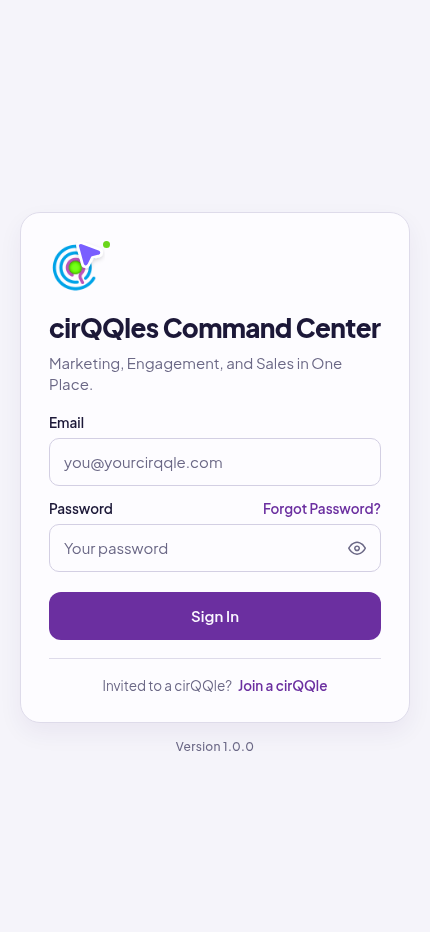
Open cirQQles and go to the sign-in screen. Select Forgot Password? next to the Password label.
2. Request a reset code
On Reset your password, enter the email address you use for your cirQQles account. Select Send reset code.
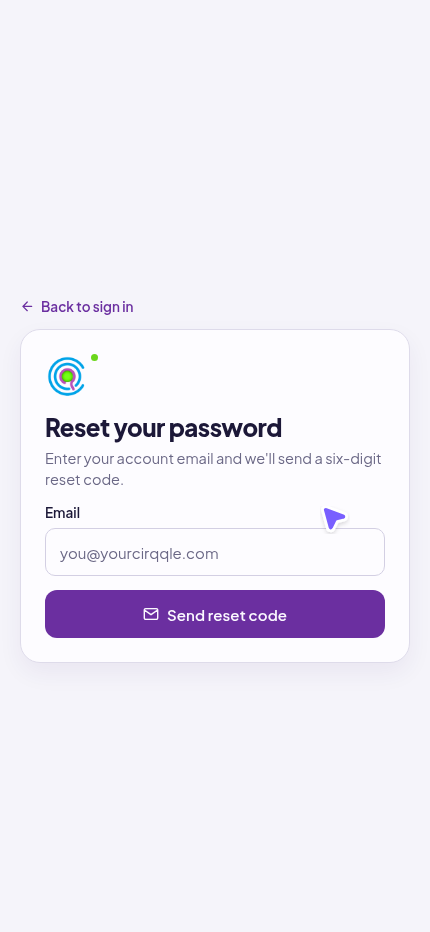
You will see a message saying that a code has been sent if an account exists with that email. This message does not confirm that the email address has an account or that the email was delivered.
3. Check your email and enter the code
Look for an email with the subject Reset Your Password - cirQQles. It contains a six-digit code.
- Return to the Enter your code screen in cirQQles.
- Enter all six digits from the email, including any zero at the beginning.
- Select Verify code.
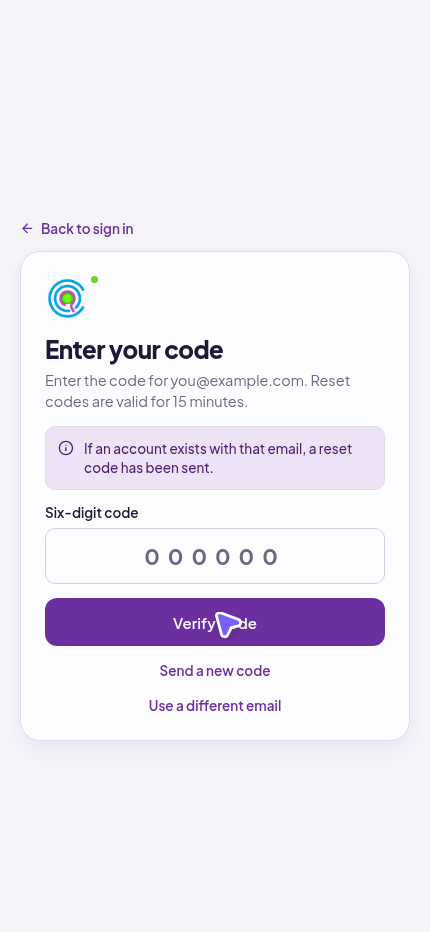
The code is valid for 15 minutes. If you request another code, use the newest one; earlier unused codes will no longer work. Never share your reset code with anyone.
4. Choose your new password
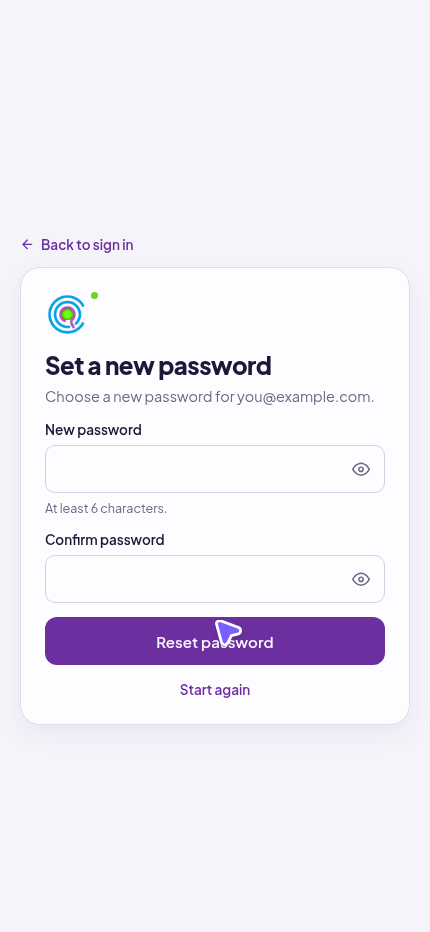
After your code is accepted, you will see Set a new password.
- Enter your new password in New password. It must contain at least six characters. For better security, choose a longer, unique password you do not use elsewhere.
- Type the same password again in Confirm password.
- Select Reset password.
5. Sign in with your new password
When the reset succeeds, cirQQles returns you to the sign-in screen and shows a Password reset message. Sign in using your account email and the new password. Resetting your password does not sign you in automatically.
Need help?
I have not received the email
Check your spam or junk folder, then check that you entered the email address used for your cirQQles account. Select Use a different email if you need to correct it. If necessary, select Send a new code and use only the newest email. If the email still does not arrive, contact your usual cirQQles support contact.
The code is invalid or expired
Check that you entered all six digits from the newest reset email. If the code has expired or was already used, select Send a new code. Complete both verification and the password change before the new code expires.
The passwords do not match
Enter the same new password in both password fields. Check for typing mistakes and make sure the password has at least six characters.
I see a connection error
Check your internet connection and try the action again. If you request another reset code, use the newest email.
I see “Reset not confirmed”
Your password may have changed even though cirQQles could not confirm the result. Select Go to sign in and try your new password. If you cannot sign in, select Request a fresh code and complete the reset again. Do not assume that your old password still works.